Server Browser
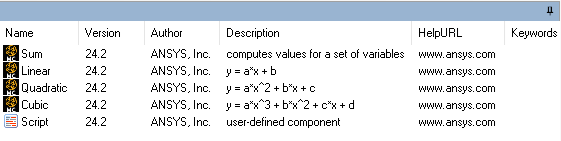
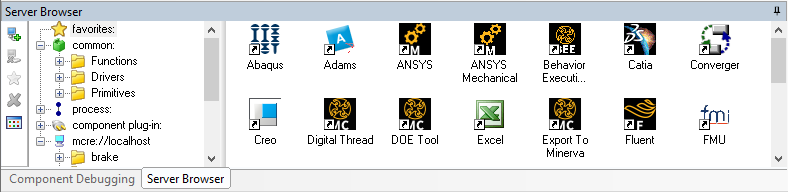
The Server Browser resides at the bottom of the ModelCenter window. It is used to browse various servers for components that can be used in ModelCenter. There are 4 kinds of servers that are supported:
- common - The common server contains components that are built into ModelCenter. The common server is always displayed in the Server Browser.
- process - The process server contains control flow widgets for use in a Process Model.
- component plug-in - Component plug-in are external libraries that allow ModelCenter to directly link with another application. Plug-ins can be developed using the Plug-In Toolkit. See the ModelCenter Plug-Ins User Guide for more information about many of the plug-ins.
- mcre - ModelCenter Remote Execution (MCRE) servers are used to easily wrap input/output-file based programs and other commercial and in-house analysis programs.
Toolbar Reference

 Add Server button - opens the Add Server dialog.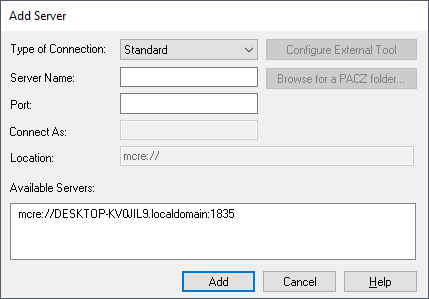
- Type of Connection dropdown field -
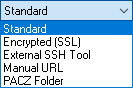
- Standard - standard connection to a running ModelCenter Remote Execution (MCRE)
- Encrypted (SSL) - connection to a running MCRE using SSL encryption
- External SSH Tool - command line invocation of MCRE on a remote system using SSH
- Manual - whatever type of connection you specify
- PACZ Folder - connection to a PACZ folder.
- Configure External Tool button - (External SSH Tool) Opens the
Preferences dialog to set the SSH settings.

- Browse for a PACZ folder button - (PACZ Folder) Opens a Windows dialog to search for a PACZ folder.
- Server Name field - (Standard, Encrypted (SSL), External SSH Tool) A text field to enter the name for the server.
- Port field - (Standard, Encrypted (SSL)) A text field to enter the port for the server.
- Connect As field - (External SSH Tool) A text field to enter the username to connect to the server as.
- Location field - (Manual URL) A text field to enter the URL of
the server. This field uses one of the following formats:
- mcre://machine.domain.com - Identifies an MCRE server running on machine.domain.com. To specify a MCRE server running on a port other than the default port, use the following syntax: mcre://machine.domain.com:port.
- file:C:\directory\subdirectory - Identifies a directory to use as the root level for a file server. This type of server is useful for accessing commonly used directories.
- Add button - adds the entered server to the Server Browser.
- Cancel button - closes the dialog without saving any information.
- Help button - opens the Help documentation for the current feature.
- Type of Connection dropdown field -
 Remove Server button - Removes the highlighted server. The common and
component plug-in servers cannot be removed.
Remove Server button - Removes the highlighted server. The common and
component plug-in servers cannot be removed. Add to Favorites button - Adds a component or an MCRE server or directory
to the Favorites folder. The "Add to Favorites" option can also be
accessed by right-clicking on a component already shown in the Server
Browser.
Add to Favorites button - Adds a component or an MCRE server or directory
to the Favorites folder. The "Add to Favorites" option can also be
accessed by right-clicking on a component already shown in the Server
Browser.
 Remove Favorite button - Removes the highlighted Favorite. The "Remove
Favorite" option can also be accessed by right-clicking on a component already
shown in the Server Browser.
Remove Favorite button - Removes the highlighted Favorite. The "Remove
Favorite" option can also be accessed by right-clicking on a component already
shown in the Server Browser.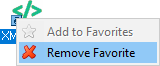
 Views button - Opens the View menu to select how to view the Server
Browser contents.
Views button - Opens the View menu to select how to view the Server
Browser contents. 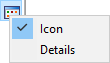
Icon View
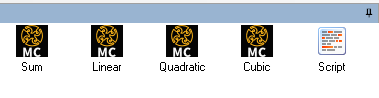
Details View