


Analysis View
Analysis View Toolbar

 Selection Tool - Used to select and
move components.
Selection Tool - Used to select and
move components. Hand Tool - Used to pan the Analysis
View.
Hand Tool - Used to pan the Analysis
View. Zoom 1:1 Tool - Zooms the view to
100%.
Zoom 1:1 Tool - Zooms the view to
100%. Zoom In Tool - Zooms the view
in.
Zoom In Tool - Zooms the view
in. Zoom Out Tool - Zooms the view
out.
Zoom Out Tool - Zooms the view
out. Zoom to Model Tool - Zooms the
workflow to fit the Analysis View window.
Zoom to Model Tool - Zooms the
workflow to fit the Analysis View window. Text Tool - Used to add text annotation
to the Analysis View.
Text Tool - Used to add text annotation
to the Analysis View.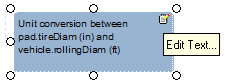
A text tool allows you to enter text on the Analysis View. The text tool can be linked to a component and can be dragged around and positioned. Click the Edit Text button to edit the text.
 Data Monitor Tool - Used to
insert a Data Monitor into the Analysis View.
Data Monitor Tool - Used to
insert a Data Monitor into the Analysis View.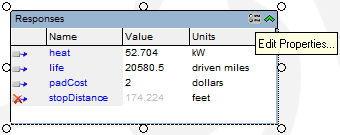
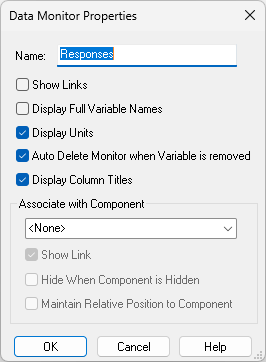
A data monitor allows you to drag variables from the Component Tree into the Analysis View. The values of the variables will update as the workflow runs. The data monitor can be linked to a ocmponent and can be dragged around and positioned. Click the Edit Properties button to edit the data monitor's name and other properties.
 Macro Tool - Used to add macro buttons to
the Analysis View.
Macro Tool - Used to add macro buttons to
the Analysis View. Data Scheduler Assembly Tool - Used
to add an Assembly to the Analysis View.
Data Scheduler Assembly Tool - Used
to add an Assembly to the Analysis View.
Component States
 Valid - The analysis component's
inputs and outputs are all up-to-date.
Valid - The analysis component's
inputs and outputs are all up-to-date. Invalid - Some or all of the
analysis component's inputs have changed.
Invalid - Some or all of the
analysis component's inputs have changed. Running - The component is
currently executing. If the component supports Progress Monitoring, a stop watch will
be displayed on the Component. Pressing this button will launch the Component Progress Monitor.
Running - The component is
currently executing. If the component supports Progress Monitoring, a stop watch will
be displayed on the Component. Pressing this button will launch the Component Progress Monitor. Failed - Execution of this
component has failed for some reason.
Failed - Execution of this
component has failed for some reason. Ignored - This component has been
disabled and will be ignored in the workflow. Right-click the component and select
"Component Enabled" to re-enable the component.
Ignored - This component has been
disabled and will be ignored in the workflow. Right-click the component and select
"Component Enabled" to re-enable the component. Not Loaded - An error occurred
in loading this component, the error was ignored, and the component was loaded
anyway. This component will not run properly unless it is reconnected after the
original error is rectified.
Not Loaded - An error occurred
in loading this component, the error was ignored, and the component was loaded
anyway. This component will not run properly unless it is reconnected after the
original error is rectified.
Component Types
- Analysis Component - A standard
component.
 Driver Component - A component that
introduces a feedback loop into the Model.
Driver Component - A component that
introduces a feedback loop into the Model. Script Component - A component
written using a scripting language.
Script Component - A component
written using a scripting language. Geometry Component - A component
that has geometry.
Geometry Component - A component
that has geometry. Assembly Component - A component
that holds other components. Double-click the icon to view its contents.
Assembly Component - A component
that holds other components. Double-click the icon to view its contents.
Component Tooltip
Component
 icon - hover over
the icon on the component to
display the tooltip for the component. This tooltip lists all defined metadata for
the component.
icon - hover over
the icon on the component to
display the tooltip for the component. This tooltip lists all defined metadata for
the component.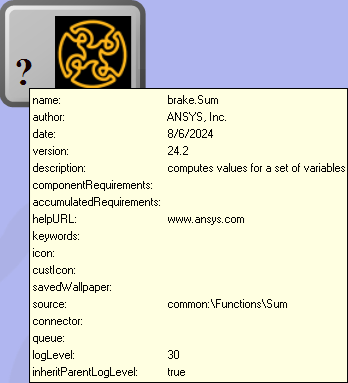
Mouse Controls
- Zoom - zoom in and out by by dragging the mouse up or down while holding the middle mouse button. For 2-button mice, hold down both buttons. If the middle button is a scroll wheel, scrolling up and down will zoom in and out.
- Pan - pan the view by dragging the mouse while holding down the right mouse button.