


Troubleshooting
This page covers troubleshooting steps for ModelCenter MBSE.
Run or Export Execution Plan button grayed out/not available
If the Run button or Export Execution Plan button is grayed out, this indicates that the selected Execution Plan is incomplete or has errors that prevent ModelCenter MBSE from running the plan.
Steps to Resolve:
- Inspect the Execution Plan:
- Is an Execution Plan tab loaded as the visible tab?
- Is there at least one selected, valid Analysis?
- Is the Execution Plan missing linked/required information for the selected Analyses?
Is there a red Error symbol
 in the
Execution Plan?
in the
Execution Plan?
- Resolve the individual issues, either in ModelCenter MBSE or in an external application as necessary.
- Run or export the Execution Plan.
Save baseline values button grayed out/not available
If the Save baseline values button is grayed out, this indicates that an Execution Results tab is not selected or has errors that prevent ModelCenter MBSE from running the plan.
Steps to Resolve:
- Inspect the Execution Results tab:
- Is an Execution Results tab loaded as the visible tab?
Is there an error message at the top of the Execution Results tab? And/or is there a red Error symbol
in the
Execution Results tab?
- Resolve the individual issues, either in ModelCenter MBSE or in an external application as necessary.
- Run or export the Execution Plan.
Error Building ModelCenter Workflow
There are several possibilities for the "Error Building ModelCenter workflow" error:
- Error building ModelCenter workflow. ... component could not be connected to source. ... component [name] does not match a known component.
- Error building ModelCenter workflow. Error: Can't parse number. Reason: Number overflow
Error building ModelCenter workflow.
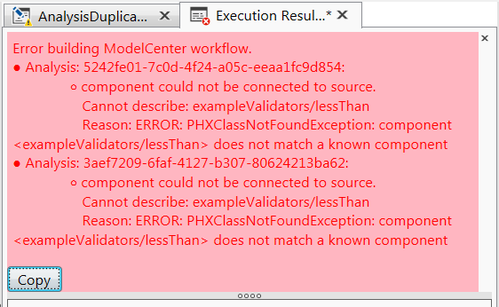
Analysis: [ID]:
    * component could not be connected to source. Cannot describe:
        exampleValidators/lessThan Reason: ERROR: PHXClassNotFoundException: component [name] does not match a known component
This error indicates that there was a problem when ModelCenter attempted to build the
workflow. Note that the Execution Plan tab on the left is marked with the yellow Warning
symbol  , which indicates
that a problem was noted on the Execution Plan before it was run.
, which indicates
that a problem was noted on the Execution Plan before it was run.
Steps to Resolve:
- Edit the Analysis outside of ModelCenter MBSE to resolve the error.
- Check that the Analysis in ModelCenter MBSE is correct.
- Re-run the Execution Plan.
Error building ModelCenter workflow.
Error: Can't parse number Reason: Number overflow This error indicates that the entered value was larger than a 32-bit number, and therefore was too large for ModelCenter to handle.
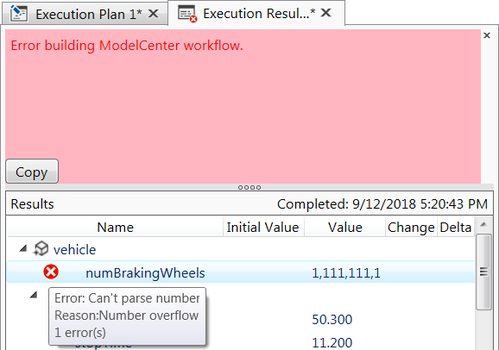
Steps to Resolve:
- Edit the Execution Plan tab to use a smaller number for this variable.
- Re-run the Execution Plan.
Alternately:
- Edit the Systems Model outside of ModelCenter MBSE to scale the system appropriately, so that the variable is not over the limit.
- Re-run the Execution Plan.
Cannot interact with the Execution Plan window
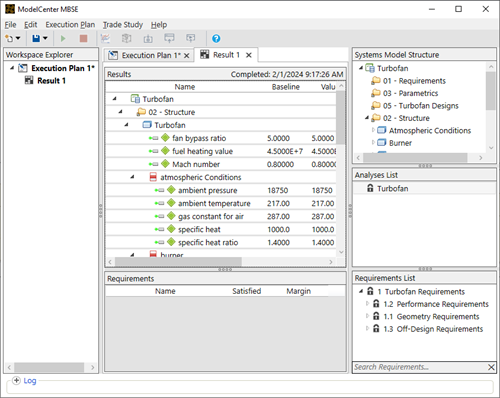
Solution: the Analysis Editor dialog is most likely open.
Steps to Resolve:
- Look for the Analysis Editor dialog:
- Is it minimized?
- Is it on another monitor?
- Is it covered by another application?
- Close the Analysis Editor dialog.
Cannot Edit Values in the Execution Results Tab
The values in an Execution Results tab cannot be changed. Instead, the initial values in the Execution Plan should be changed and the Execution re-run with the new values.
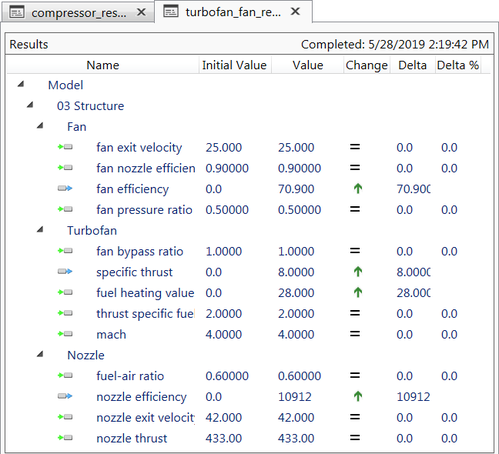
Steps to Resolve:
- Click the Execution Plan tab that generated the Execution Results tab.
- Edit the values in the Execution Plan tab.
- Re-run the Execution Plan with the new values.
Failed to save design instance
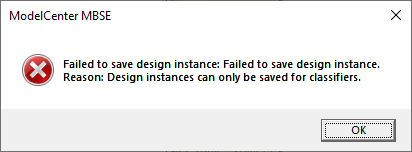
Solution: save a Design Instance from a block structure element, not from a variable or any other type of structure element (e.g., package) in the model.
Steps to Resolve:
- Click on a block in the execution results tab.
- Save the design instance.
Errors connecting to ModelCenter Remote Execution
- Error: Cannot connect to ModelCenter Remote Execution
- Error: Cannot connect to: [MCRE server address and port]. Reason: No connection could be made because the target machine actively refused it.
- Cannot connect to: [MCRE server address and port]. Reason: The requested name is valid, but no data of the requested type was found. Solution: Make sure you have specified a valid host name and that the MCRE server is running on that machine.
Error: Cannot connect to ModelCenter Remote Execution
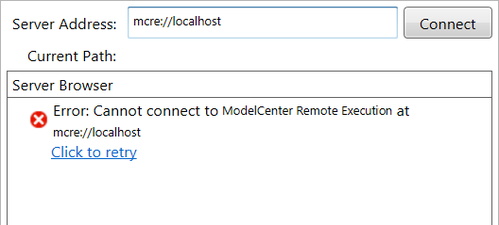
This error indicates that the Server Address for the ModelCenter Remote Execution is not correct.
Steps to resolve:
- Correct the MCRE server address listed in the Server Address field.
- Click the Click to retry link in the error message, or click the Connect button next to the Server Address field.
Error: Cannot connect to: [MCRE server address and port]
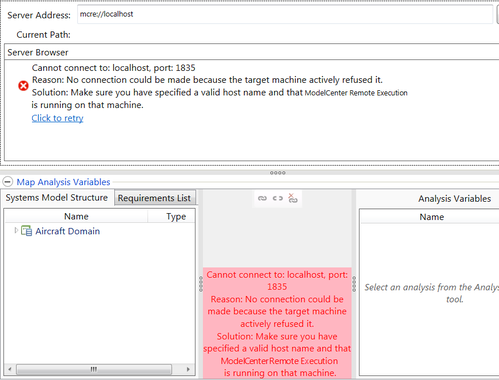
Reason: No connection could be made because the target machine actively refused it.
This error indicates that the ModelCenter Remote Execution may not be running at the Server Address.
Steps to resolve:
- Check that ModelCenter Remote Execution is running at the indicated Server Address.
- Check that the MCRE server address is correct.
- Click the Click to retry link in the error message, or click the Connect button next to the Server Address field.
Cannot connect to: [MCRE server address and port]
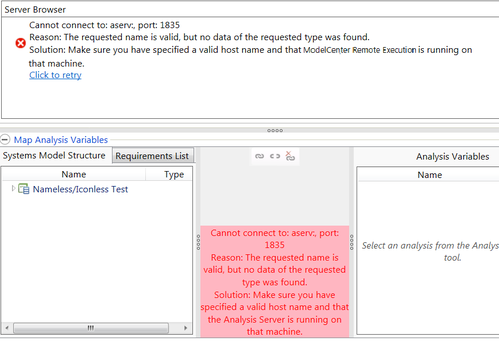
Reason: The requested name is valid, but no data of the requested type was found.
Solution: Make sure you have specified a valid host name and that the ModelCenter Remote Execution is running on that machine. This error indicates that the Server Address may be invalid or the MCRE server may not be running at the Server Address.
Steps to resolve:
- Check that ModelCenter Remote Execution is running at the indicated Server Address.
- Check that the MCRE server address is correct.
- Click the Click to retry link in the error message, or click the Connect button next to the Server Address field.
Cannot get hierarchy. ERROR: ModelCenterException
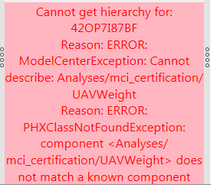
ERROR: ModelCenterException: Cannot describe: [location].
ERROR: PHXClassNotFoundException: component [address] does not match a known component.
This error indicates that a component in the Analysis could not be found at the indicated location.
Steps to resolve:
- Edit the Analysis outside of ModelCenter MBSE to ensure the component is in the correct location.
- Reload the Analysis in Analysis Editor.
Cannot start session. ERROR: PHXClassNotFoundException
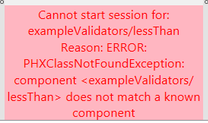
ERROR: PHXClassNotFoundException: component [name] does not match a known componentThis error indicates that a component in the Analysis could not be found at the indicated location.
Steps to resolve:
- Edit the Analysis outside of ModelCenter MBSE to ensure the component is in the correct location.
- Reload the Analysis in Analysis Editor.
Variable type is not supported
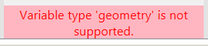
This error indicates that a variable type in the selected Analysis is not supported in ModelCenter MBSE.
Steps to resolve:
- Edit and save the Analysis outside of ModelCenter MBSE to correct the variable type.
- Reload the Analysis in Analysis Editor.
OK and/or Apply button is grayed out
There are several reasons why the OK and Apply buttons may be grayed out. Hover over a button to see the error:
- Not all Analysis variables have been mapped.
- The proposed Analysis name is invalid.
- The tool configuration for this Analysis is not valid.
- No error tooltip displays (Apply button)
1. Not all Analysis variables have been mapped.

All variables in the Analysis Variables section must be mapped to a Systems Model Structure, a Requirement, a constant, or an operator.
Steps to resolve:
Steps to resolve:
- Link the Is Satisfied variable to the appropriate Analysis Variable.
Alternately:
- Unlink the Margin variable.
- Ensure all Analysis Variables are linked appropriately.
2. The proposed Analysis name is invalid.

Analysis names must be unique within the Analyses List for the systems model.
Steps to resolve:
- Give the Analysis a unique name.
- Click the Apply button to save the Analysis Name, or click the OK button to both save the Analysis Name and close the dialog.
3. The tool configuration for this Analysis is not valid.

This message may be seen in an Analysis that is being edited. It indicates that there is an error in finding the Analysis' location.
Steps to resolve:
- Close the Analysis Editor.
- Check that the Analysis is located in the expected location on the selected ModelCenter Remote Execution.
- Re-open the Analysis to edit.
4. No error tooltip displays (Apply button)
This indicates that you are editing an Analysis and no changes have been made yet. Updating only the Analysis Name field does not trigger the Apply button.
Steps to resolve:
- Click the OK button to save the Analysis Name and exit the dialog.
Alternatively:
- Click on one of the Analysis Variables to highlight it.
- Click the Apply button to save the Analysis Name.
Name is not a valid Analysis name/Analysis Name field is red
- Name was empty or contained only whitespace.
- Name either contains invalid characters or the name already exists.
Name was empty or contained only whitespace.

An Analysis name must contain at least one character (besides whitespace/Space).
Steps to resolve:
- Give the Analysis a name that is not empty or only whitespace.
- Click the Apply button to save the Analysis Name, or click the OK button to both save the Analysis Name and close the dialog.
Name either contains invalid characters or the name already exists.

Analysis names must be unique within the Analyses List for the systems model.
Steps to resolve:
- Give the Analysis a unique name.
- Click the Apply button to save the Analysis Name, or click the OK button to both save the Analysis Name and close the dialog.