


Thermal Desktop Plug-In (Beta) References
The component GUI lists the variables of your model. All Symbols, Case Symbol Overrides, orbits, and Cases themselves are considered inputs. From this GUI, you can Delete any inputs you do not want to use. It will not remove them from the Thermal Desktop model, but only from the ModelCenter list of variables.
You can reopen this form by right-clicking on the Thermal Desktop component in ModelCenter and selecting "Open Component GUI".
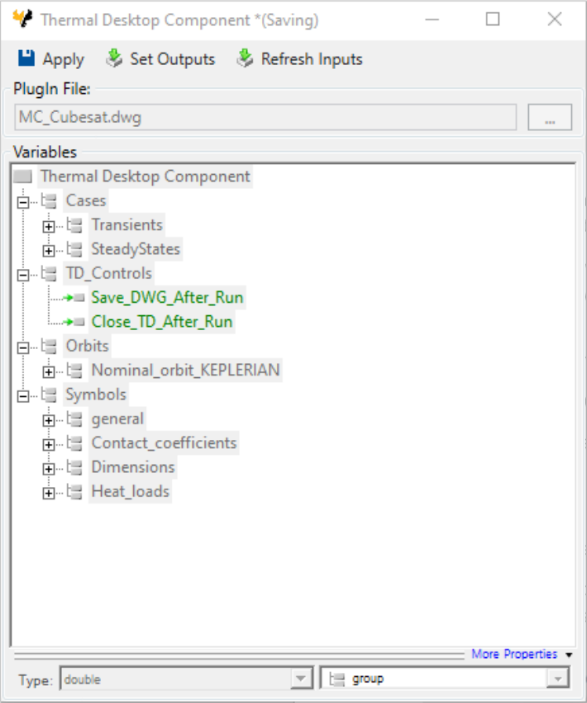
- Apply - saves any changes made to the plug-in. Click the X button in the upper right corner to close the plug-in.
- Set Outputs - Reopens the Select Output dialog so you can change outputs.
- Refresh Inputs - Reloads the Thermal Desktop model. This will reload cases
and symbols. It will also reset any changes you have made to inputs.
Note: Refresh Inputs does not update outputs. If you have removed cases from your Thermal Desktop model, be sure to update the outputs as well.
- Settings - opens the Settings dialog.
Select Output dialog

- Group name field- comes from the Case Set Manager. It is possible no group is defined for a case.
- Case name field - comes from the Case Set Manager.
- Time = 0 or Steady state pane -
- End of transient pane -
- Files - Mapping to Stress, Write Results pane - Do not enter the full
path, but only the filename. The files are expected in the run directory if
specified or in the
dwgdirectory if not. - Minimum value in transient pane -
- Maximum value in transient pane -
- Full Data in Transient pane -
- Previous Case button - move to the previous case.
- Copy to all cases button - click this button if the output for the current case is the same for all cases. The data on the current dialog will overwrite any output requests for all other cases.
- OK button - save all changes and close the dialog.
- Cancel button - close the dialog without saving any changes.
- Next Case button - move to the next case.
Settings dialog

- Enable parallel ID - With this option enabled and a number of parallel jobs set in ModelCenter, DOE runs from ModelCenter will copy the contents of the Thermal Desktop directory into multiple new working directories. The number of directories is determined from the ModelCenter settings. These Thermal Desktop drawings will be opened and executed in parallel. Note that each parallel run will require its own license.
- Save Thermal Desktop dwg after runs - This saves the Thermal Desktop drawing after completing the case runs.
- Close Thermal Desktop after runs - This will close Thermal Desktop after the case runs.
- Hide AutoCAD - This will run AutoCAD without making it visible. When Sinda is opened, the status window and completion windows will be visible. AutoCAD is considered a background process from the Windows Task Manager. If not paired with Close Thermal Desktop after runs when done, this can leave AutoCAD and TD running as a background process. It is possible to make several runs without Close Thermal Desktop and reconnect to the same file each time, and only Close the last run.