


ModelCenter Plug-Ins for CAD Fusion Features
- Interacting with CAD Tools
- Selecting design variables from the CAD Model
- Filtering the Variables
- Showing and Hiding Variables
- Calculating the mass properties of the CAD Model
- Managing CAD Tools
- Files options
- Session Management Options
- Macros options
- Start Up option
Interacting with CAD Tools
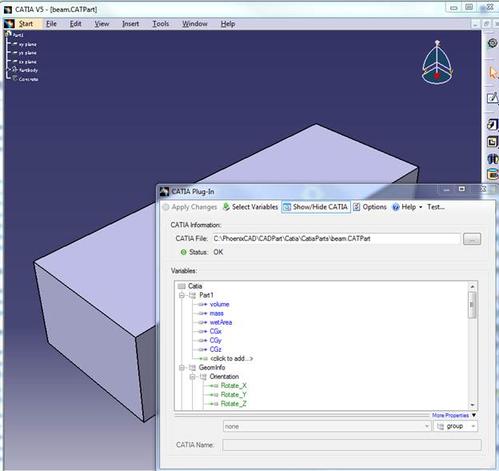
When using the ModelCenter Plug-Ins for CAD Fusion, you can interact with CAD tools by clicking Show/Hide GUI button on the Plug-In dialog or variable import dialog. If selected, the CAD session will be made visible automatically each time you execute the Plug-In.

Selecting Design Variables from the CAD Model
Tree View (top)
 -- display the
variables according to the hierarchical structure of the CAD model.
-- display the
variables according to the hierarchical structure of the CAD model.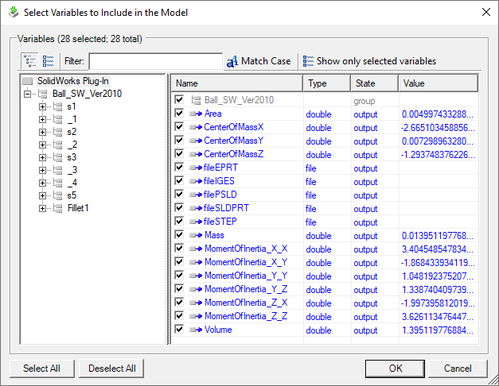
List View (bottom)
 -- display a
single list of all variables available in the CAD model.
-- display a
single list of all variables available in the CAD model.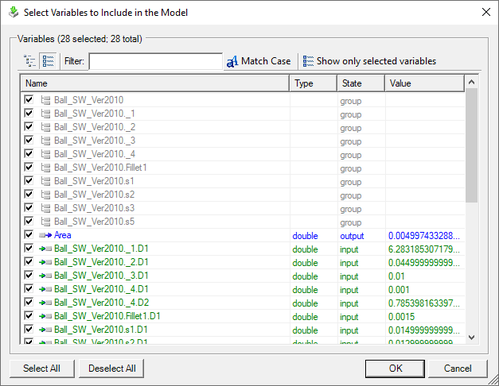
Filtering Variables
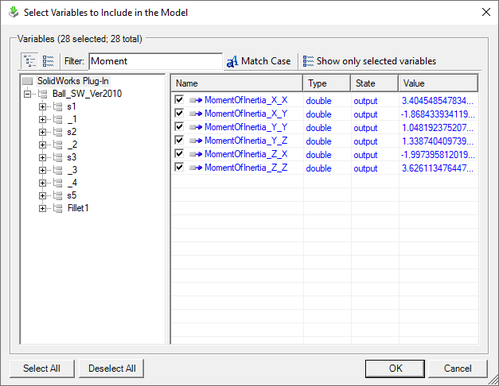
You can narrow down the variables by filtering on the variables' name. By default, the filter is case insensitive. To make the filter case-sensitive, press the Match case button next to the filter text box.
Showing and Hiding Variables
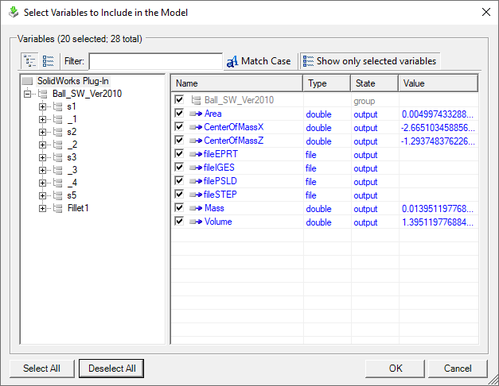
You can click the Show only selected variables button to show or hide unselected variables.
Calculating the mass properties of the CAD Model
The ModelCenter Plug-Ins for CAD Fusion can calculate mass properties for the CAD Model:
- Mass
- Volume
- Surface Area
- Center of Gravity
Managing CAD Tools

The options dialog allows you to customize the behavior of your Plug-In.
Files Options
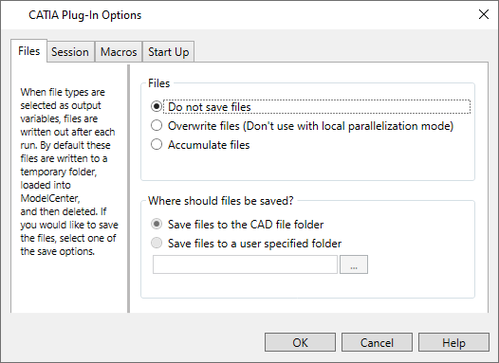
The Plug-Ins can export different file formats for the CAD model. When file types are selected as output variables, files are written out after each run. By default these files are written to a system temporary directory. These file variables can be loaded into ModelCenter, and then deleted. If you would like to save thesefiles, set up the save options:
- Files:
- Do not save files: By default, the file variables are outputted to temporary folder by CAD Fusion Plug-Ins, loaded into ModelCenter, and then deleted.
- Overwrite files: If selected, the file variables are overwritten after each run. Some CAD part files will be renamed, while others will overwrite the original file.
- Accumulate files: If selected, the file variables are accumulated after each run. A number indicating the run will be added to the filenames.
- Where should files be saved: This option is only available when "Overwrite
files" or "Accumulate files" is selected.
- Save files to the CAD file folder: If selected, the file variables will be saved to the CAD model folder.
- Save files to a user specified folder: If selected, the file variables will be saved to the user-specified directory.
- Exporting files - ModelCenter Plug-Ins for CAD Fusion can export the CAD model
in different file formats.
- ModelCenter Plug-In for CATIA:
- CATIA CATPart
- CATIA CATProduct
- STL
- IGES
- Model
- STEP
- CGR
- HCG
- WRL
- BMP
- CGM
- EMF
- JPG
- TIFF
- ModelCenter Plug-In for NX:
- NX Part
- IGES
- STEP203
- STEP214
- ModelCenter Plug-In for Creo:
- Creo Part
- STEP
- IGES
- NEUTRAL
- BMP
- TIFF
- JPEG
- ModelCenter Plug-In for CATIA:
Session Management Options
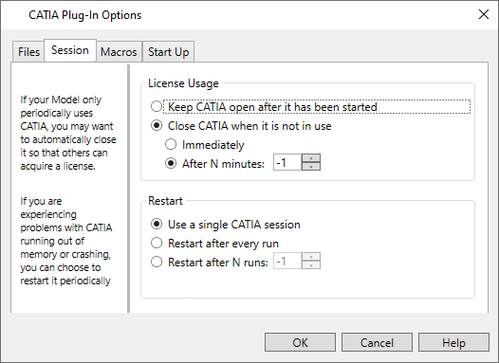
-
License Usage:
- Keep CAD tool open after it has been started: If selected, the CAD session will be always on until you delete the CAD component or close the ModelCenter model.
- Close CAD when it is not in use immediately: If selected, the CAD session will be closed when you finish running the Plug-In. This option is useful when your CAD model only periodically uses CAD tool. Use this when you want to automatically close it so that others can acquire the license.
- Close CAD when it is not in use after N minutes: If selected, the CAD session will be closed after a specified idle time in minutes. Therefore, the CAD tool will be automatically closed, and others can acquire the license.
Note: In all cases, the CAD tool with be automatically restarted whenever the component is run. -
Restart:
- Use a single CAD tool session: If checked, the CAD tool will use the single CAD tool session during the whole process.
- Restart after every run: If checked, the CAD tool will be restarted after every run. If you experience problems with the CAD tool running out of memory or crashing, choose this option to restart it periodically.
- Restart after N runs: If checked, the CAD tool will be restarted every N runs. If you experience problems with the CAD tool running out of memory or crashing, choose this option to restart it periodically.
Note: NX only: If filePART, fileIGES, fileSTEP203, and fileSTEP214 outputs are selected, NX may still need to restart more frequently than the setting selected here indicates.
Macros Options
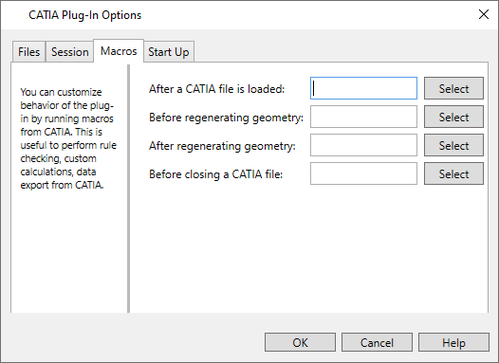
You can customize behavior of the plug-in by running macros from CATIA and Creo. This is useful to perform rule checking, custom calculations, or data export from the CAD tool.
(This option is not available for the NX Plug-In.)
Start Up Options
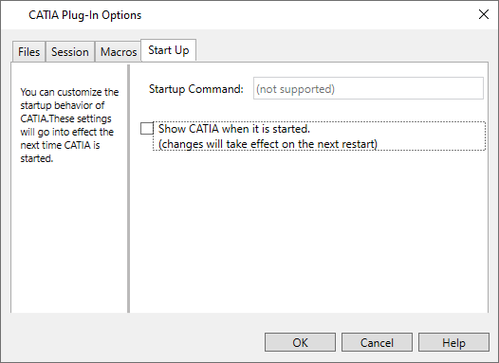
- Startup Command: lets you override the startup command (.psf) file if you do not want to use the default. For example, most older versions of Creo default to the "Creo1" file, and Creo 1.0 Parametric defaults to "parametric1". If you want this particular component to use a different command, put the name of the file (without extension) here.
- Show [plugin] when it is started: By selecting this option, the GUI of the CAD tool can be visible each time when it is started by the Plug-In. (This option is not available for NX Plug-In.)