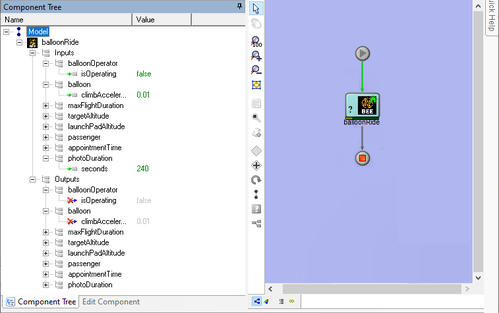
How to Use the Behavior Execution Engine Plug-In
Note: All .mdzip files used with the BEE Plug-In must have the Moxie-Core.mdzip
and Moxie-Base.mdzip model libraries enabled. These are added to the
[MagicDraw/Cameo installation folder] > modelLibraries
folder when the BEE Plug-In is installed. Add these model libraries to specific projects
through Options > Project Usages > Use Project. - Create a new workflow using the File > New menu item or by clicking the New Model button on the Standard or File toolbar. Either action will open a Windows dialog to save the new workflow.
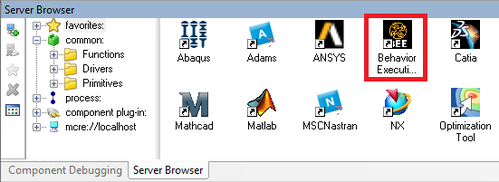
- Drag the Behavior Execution Engine component from the Server Browser and drop it into
the Analysis View.
The Initialize PACZ dialog opens. Select the Use Existing Directory option.
Note: The BEE Plug-In does not support the Import Files Manually option.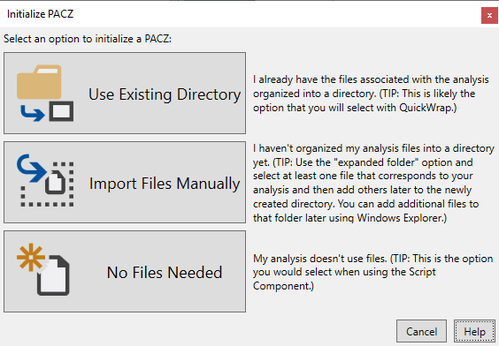
For more information on the Initialize PACZ dialog options, click the Help button in the dialog.
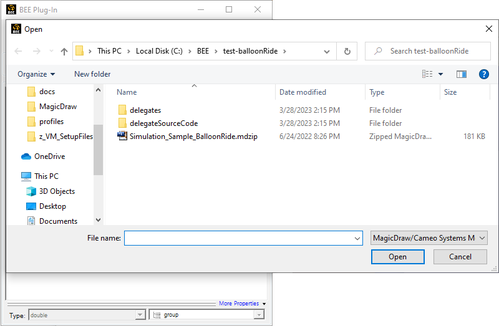
- A Windows dialog opens. Navigate to the folder that contains the .mdzip file
that you want to use. Click the OK button.
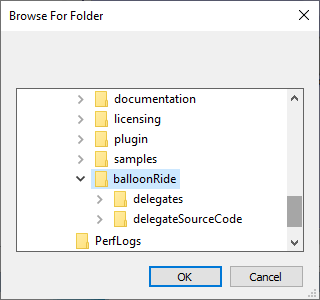
- 5. A dialog opens to show that folder. Select the .mdzip file and click the
Open button.
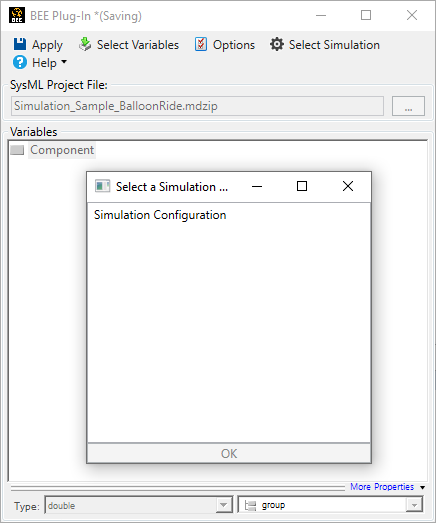
- In the Select a Simulation dialog, click the simulation to use in Behavior Execution
Engine. Then click the Ok button.
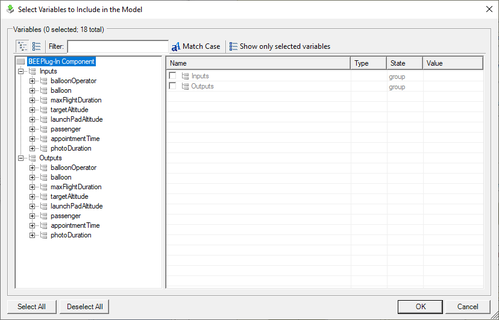
- The Select Variables to Include in the Model dialog appears with all the inputs and
outputs from the selected simulation. Select the desired variables and then click the
OK button.
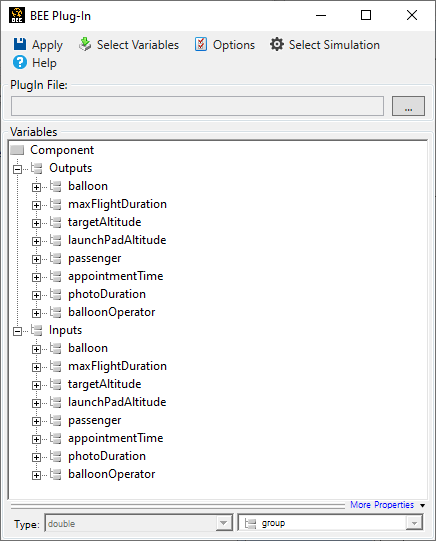
- The selected variables are imported in the Plug-In.
- Click the Apply button to save the variables to the ModelCenter workflow.
- If needed, click the Options icon to open the Options dialog and then select the
folders with the Delegates for the selected .mdzip. Apply the changes.
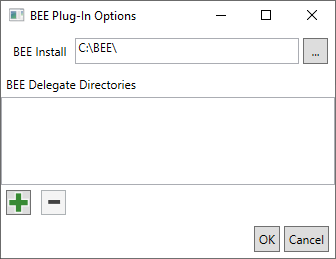 Note: If the MoxieDelegateModulePaths stereotype is configured in the simulation to point to the delegates directory, then that value will override any selected Delegates folders. Also, if this stereotype is used, the Delegates folder must be in the location indicated in the stereotype.
 - Close the Behavior Execution Engine Plug-In.
- Click the green Play button in ModelCenter (either on the toolbar or on the
Behavior Execution Engine Plug-In itself) to run the workflow. If STK is called in the
.mdzip file, then STK will also open and run in the background during the
simulation.