


Geometry View
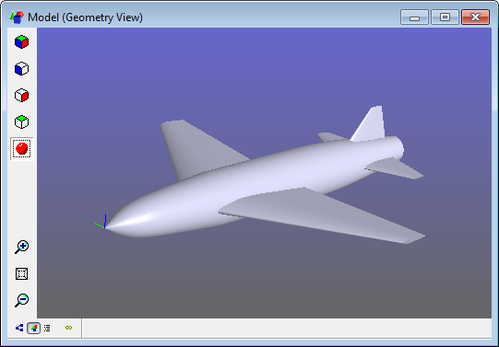
 Orthogonal View button - Rotates the view to a front
view orientation.
Orthogonal View button - Rotates the view to a front
view orientation.  Front View button - Rotates the view to a front view
orientation.
Front View button - Rotates the view to a front view
orientation. Side View button - Rotates the view to a top view
orientation.
Side View button - Rotates the view to a top view
orientation.  Top View button - Rotates the view to a top view
orientation.
Top View button - Rotates the view to a top view
orientation. Reset View button - Rotates the view to a top view
orientation.
Reset View button - Rotates the view to a top view
orientation. Toggle Shading button - Toggles shading on and
off.
Toggle Shading button - Toggles shading on and
off. Zoom In button - Zooms in on the view.
 Zoom All button - Auto-zooms to the current contents
of the view.
Zoom All button - Auto-zooms to the current contents
of the view.  Zoom Out button - Zooms out of the view.
Mouse Controls
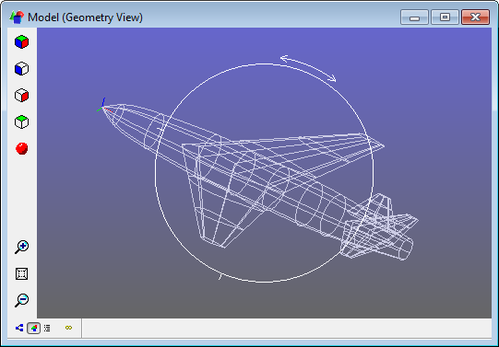
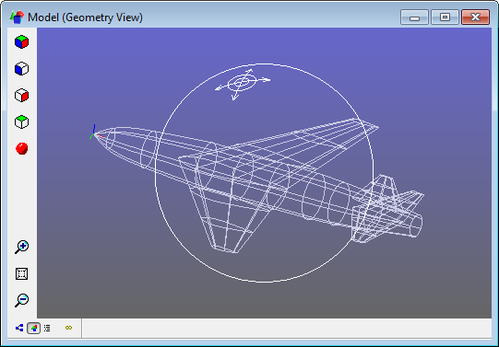
Zoom - zoom in and out by by dragging the mouse up or down while holding the middle mouse button. For 2-button mice, hold down both buttons. If the middle button is a scroll wheel, scrolling up and down will zoom in and out.
Pan - pan the view by dragging the mouse while holding down the right mouse button.
Rotate - Hold down the left mouse button while in the Geometry View, and a "trackball" appears. When the cursor is inside the trackball, the view will rotate as if you were rolling the trackball in the direction you drag the mouse. When outside the trackball, the view will spin clockwise or counterclockwise as you drag the mouse.