


Fluent Options Dialog Reference
How to Open the Options Dialog
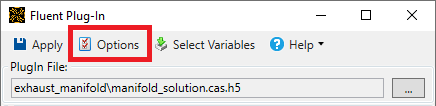
Open the Fluent Plug-In interface.
Click the Options button.
Options Dialog Reference
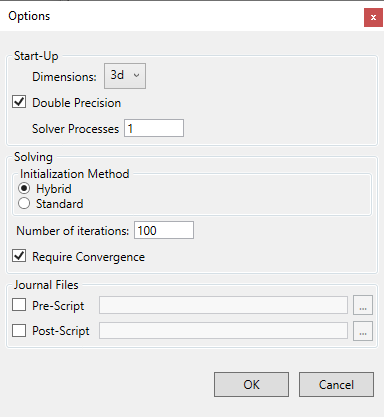
Dimensions dropdown field - Select the option specifying the dimension and precision:
2d - 2D, single-precision solver
3d - 3D, single-precision solver
Double Precision check box - If this field is checked, the solution calculations will be performed in Double Precision mode.
Solver Processes text field - Enter the number of processor cores to use for the solution calculations.
Solving - Initialization Method selection field - select the initialization method:
Hybrid option - uses hybrid initialization.
Standard option - uses standard initialization.
Number of iterations text field - Enter the number of iterations to perform.
Require Convergence check box - if checked, this setting requires that the Fluent simulation converge.
If this option is unchecked, the Fluent Plug-In runs without requiring convergence. Additionally, an output variable named "Converged" will be added to the plug-in and will be set to
trueorfalse, depending on the outcome of the simulation.Journal Files
Pre-Script check box field - check this box to begin with a journal file.
Pre-Script text field - click the Browse
 button to open a
Windows dialog to search for the journal file.
button to open a
Windows dialog to search for the journal file.
Post-Script check box field - check this box to end with a journal file.
Post-Script text field - click the Browse
button to open a
Windows dialog to search for the journal file.
OK button - click to save changes and close the dialog.
Cancel button - click to close the dialog without saving changes.