


Licensing Setup
Note:ModelCenter Remote Execution must be installed before licensing can be configured.
Configuring Licensing Via Terminal (Linux)
- Start a terminal and change directory to the MCRE licensing folder:
cd MCRE/AnsysLicensing/shared_files/licensing - Create a file in this folder called ansyslmd.ini.
- Open this file in a text editor and add a line such as:
SERVER=1055@avuew19licsrv01.win.ansys.comFor more information on the ansyslmd.ini file, see the Ansys Licensing Guide.
The ANSYSLMD_LICENSE_FILE environment variable can be used in place of the ansyslmd.inii file. The variable will supersede the ansyslmd.ini file.
- Save the file and exit.
Configuring Licensing Via GUI
- Open the Ansys Client Licensing Settings utility:
- The utility will open automatically during installation and can be configured then.
- It can also be opened from Start > ModelCenter > Ansys Client Licensing Settings.
- To run the utility on Linux, change directory into the MCRE folder and then
enter the following command:
sh configure_licensing.sh
- Under "License Servers" in the left-hand menu, click the "FlexNet Publisher" option.
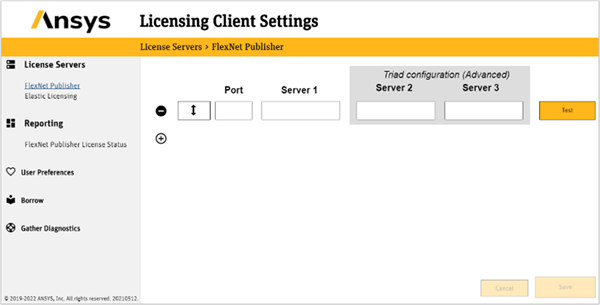
- Enter your license server information in the Port and Server 1 fields.
- The default Port is 1055.
- The license server hostname or IP address is entered in the Server 1 field.
- Click the Test button to test the connection to the license server.
- If the test is successful, click the Save button in the lower right to save changes.