In ModelCenter, create a new Model using the File > New menu item or by
clicking the New Model button on the Standard or File toolbar.
Either action will open a Windows dialog to save the new workflow.
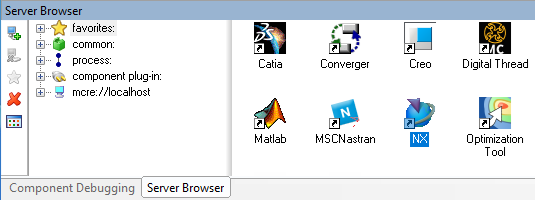
Drag the NX component from the Server Browser and drop it into the Analysis
View.
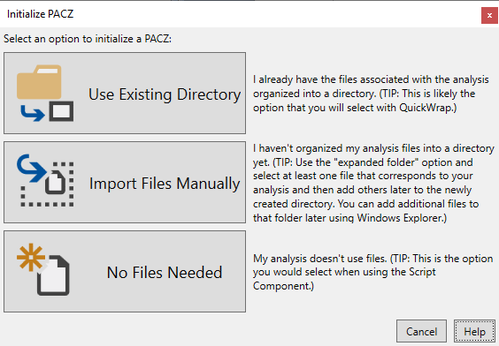
The Initialize PACZ dialog opens. Select the option that best describes the files for
your workflow, then select the folder or file as needed. For more information on the Initialize PACZ dialog options, click the Help
button in the dialog.
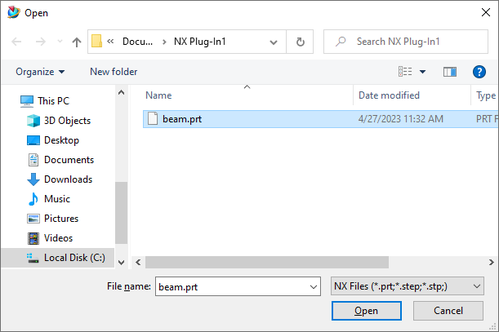
You will be prompted with a CAD file selection dialog. Select the beam.prt file
from Step 1 and click the Open button.
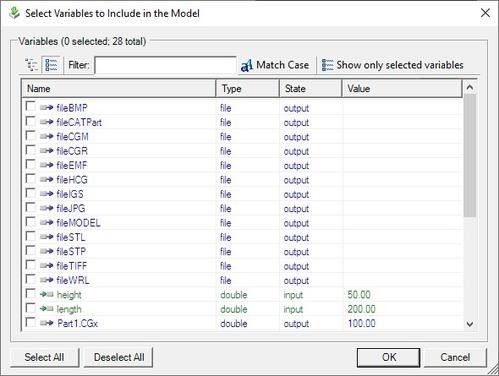
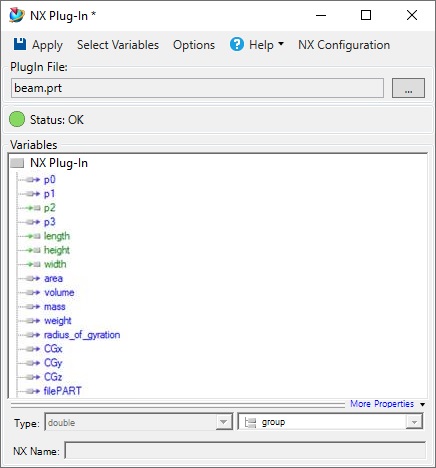
Once the file is loaded by NX, the plug-in will search all design parameters in the
current file and extract them into the variable import dialog.
Specify the desired design variables and click the OK button. The selected
variables will be automatically shown in the plug-in.
Click the Apply Changes toolbar button to update ModelCenter, and then close the
Plug-In by closing the window.
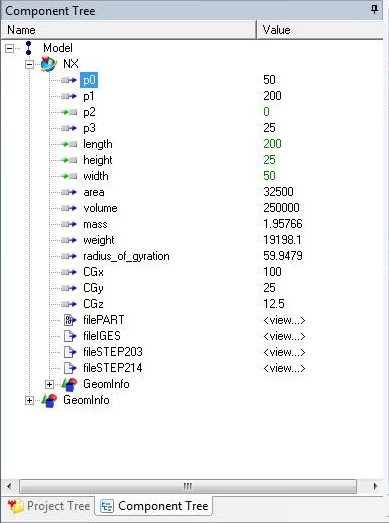
Using the Component Tree, verify that the component is working correctly by entering
the input values shown and then validating the output values.