


Favorites
Records can be marked as Favorites so that they are easily-identifiable in a selection project, or so a selection can be performed only using a custom subset of favorite records.
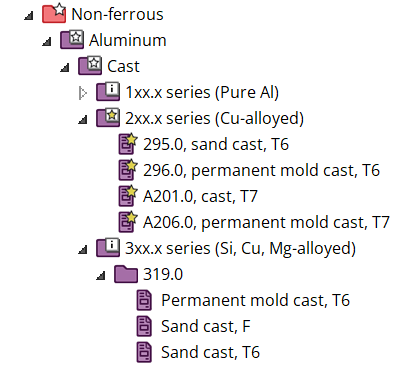
You can mark one or more records as favorites. Favorite records are highlighted by a star on the browse tree and selection charts, allowing you to identify them among the surrounding records.
The list of favorite records can be saved for future use, and associated with a database.
-
To add a record as a favorite:
-
Right-click and select Add to Favorites.
A star appears next to the record name to indicate the record is a favorite:
 Note:
Note:- Parent records of the favorite will become starred with an unfilled star in the browse tree.
- Adding a folder to favorites will add all child records to favorites. However, if you add a folder from the Search results, it will NOT add the child records.
- The favorites list can be used to create a custom subset of selection data.
- The current favorites are saved in the current selection project.
-
Right-click and select Add to Favorites.