


Revising a published Favorites List
Favorites Lists may be revised after publication, for example, to add or remove records, or to change the list details. When modifications are complete, the revised list must be re-published.
A published list can only be revised by the user who created it, or by users with List Adminstrator or List Curator privileges.
When you start the revision process (), a personal copy of the list is automatically created for you to edit. Only the person making the revisions can see this 'under revision' copy of the list. Everybody else continues to see the published version of the list, and can carry on working with it as normal while you revise the personal copy.
You can change the name, description, and notes, and add or remove records, in MI Favorites or MI Materials Gateway. You can also use MI Explore to find and add records.
When revisions are complete, the list must be re-published. As for a first-time publication, this is a two-part process: you submit a publication request, and a List Publisher reviews the request. When approved, the revised version of the list is automatically published, overwriting the original version.
-
Select the list, then right-click and choose .
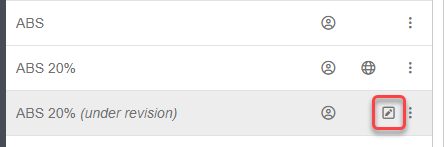
A personal copy of the List is created with (under revision) appended to the name, and an 'Under revision' flag in the status area.
-
Submit a publication request by selecting the list, right-clicking, and choosing .
A 'Pending approval' flag
 will then
be shown in the list status area. The List Publisher in your organization must now
review your publication request, and approve or reject it.
will then
be shown in the list status area. The List Publisher in your organization must now
review your publication request, and approve or reject it.
If the request is approved, the revised list is published, overwriting the original version. If the request is denied, the (under revision) version remains unpublished, and you can continue to revise it.