


Search results
Search Results show all records returned by a search. You can sort and filter your search results to refine your search.
- Read mode: only Released records will be returned in search results
- Edit mode: Released and Unreleased records (current version only) are returned.
Using the options on the record menu button  , you can
- Add records to the Record list (for inclusion in reports or for export)
- Copy record information to the clipboard
- Download data to Microsoft Excel
- Add records to your Watch List.
To add all of the records in the Search Results list to the Record List, click the menu
button above the list and then
click Add all results from this table to the list.
To modify the search criteria and run your search again, click Refine search at the top of the Search Results page.
Sorting search results
Change the sort order of your search results by clicking Sort by above the list and selecting the required option.
For text searches, the default sort order for the search results is in descending order of relevance ("Text rank") based on a score calculated by the search engine.
You can also sort text search results by a record property instead, such as the date the record was created or modified:
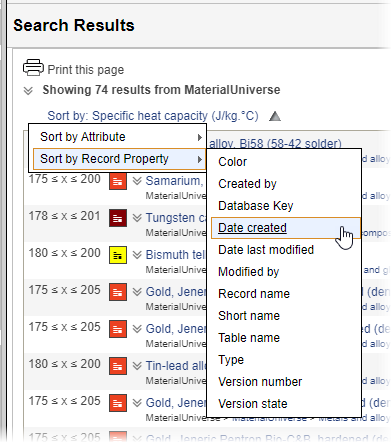
For Attribute searches, the default order for the search results is by descending value of the first criteria specified on the Advanced Search page. You can choose a different Attribute to use to sort the list: this can be any of the Attributes used as search criteria, or you can browse to select any other Attribute in the Table (even if it wasn't used as a search criteria):
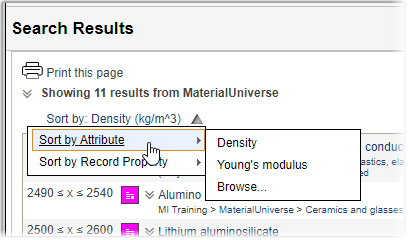
You can also sort by record properties, same as for text searches.
If your search results include records from multiple Tables, you can filter the results in Results By Table panel. Click a Table name to see only search results from that Table. You can also add all results from a specific Table to the Record List.
Copy search URL
Click Copy search URL at the bottom of the Search Criteria panel to copy a URL for the current search to the clipboard.
You can then use this URL to favorite or bookmark the query in your browser, or to share it with other people. Clicking this URL will open the MI Viewer application and run the search immediately.
- Include your current User Preferences: select this to include your current settings for Application and Search options, Show/Hide empty items, and Read mode/Edit mode as URL parameters. When someone other than you uses the generated URL, these settings will override their current settings.
- Include your Database Preferences: select this to include your current Subset, Layout, and unit system database settings as URL parameters. When someone other than you uses the generated URL, these settings will override their current settings.
- Link to current search: select this to include the current search query as a URL parameter.
- Run the search after loading: select this to run the search automatically.