Go to the Advanced Search page to construct complex search queries with multiple
search criteria.
In an Advanced Search, criteria may include specific data values or combinations
of different data values. For example:
- Young's modulus is at least 0.1 10^6 psi
- Young's modulus is at least 0.1 10^6 psi AND Density is between 0.118 and 0.2
lb/in3
You can use conditional logic to build powerful and flexible data search queries, for example:
- Specific gravity < 1.2g/cm3 OR Density < 1200kg/m3
- Flame Rating 3.2mm=V1 OR Flame Rating 1.6mm=V1 OR Flame Rating 0.8mm= V1
- (Tensile Modulus > 5GPa OR Flexural Modulus > 5GPa) AND Price < 1.80
USD/kg
When using conditional logic
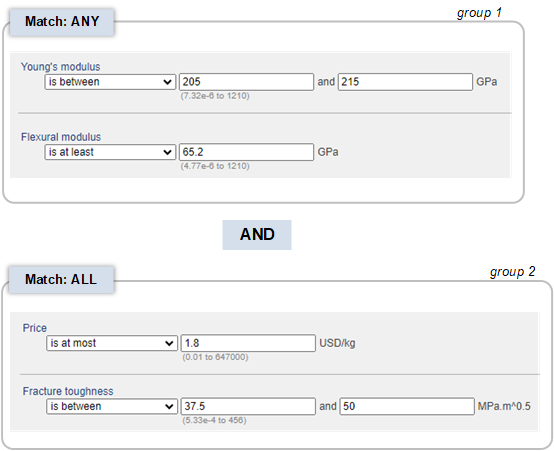
- Criteria are grouped.
- Each group has a match type - ALL or ANY - that determines whether all of the criteria
in that group must be matched, or only some of them.
- Multiple groups are combined using the AND and OR logical operators. For example:
To run an Advanced Search:
-
Click Advanced Search below the Quick search field in the
toolbar.
- Optional:
Choose a Table from the Search in list to limit the scope of
the search to records in that Table.
All of the Tables that you are authorized to access in the currently-selected
Profile or database will be listed. When you select a Table:
- Only records in the specified Table will be searched.
- Only Attributes in the specified Table can be selected as search
criteria.
Select
Any table to set the search scope to all
available Tables.
Note: If you are using a predefined search, you cannot choose a
different Table.
Use the features in Search for Attributes and data to
add attribute search criteria to your search query.
-
Set the Query Type:
- Select Simple Query, to search for records that match
all of the specified criteria.
- Select Conditional Logic, to match combinations of
different criteria.
-
For Conditional Logic queries, set the Match type:
- ALL - records that satisfy all of the criteria in the group.
- ANY - records that satisfy at least one of the criteria in the
group.
-
Type the first few letters of the Attribute name in the selection field, and then
choose the Attribute from the list.
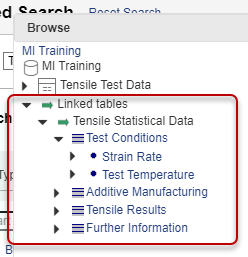
Tip: Alternatively, click
Browse attributes and
browse the tree to find the Attribute you are interested in. Attributes are
grouped under tables here.
Under Linked tables, you
can also see and select Attributes from other Tables, for example:
Once you have included an Attribute from a specific Table in your search query,
the search scope will limited to that Table only:
- The table containing the Attribute will appear in Search
in at the top of the page, indicating that the scope of the search
is now limited to that table, and you won't be able to change this unless you
remove all the selected Attributes.
- When you add more Attribute search criteria, only Attributes in the selected
table will be available.
-
Choose the search threshold and enter the value or values.
-
Repeat steps 5 and 6 to add more Attributes to the group.
Tip: To add another group of criteria, click Add
Group and repeat step 2 through 5 for each group added.
Use the features in Search for keyword and phrases to
add search terms including keywords, phrases, and query string operators, to refine your
search.
-
Enter your search term in all of these words, including any
required query string operators and wildcards.
Tip: Alternatively, click Build a search query and
enter one or more query strings, these will be added to the search query field
with the relevant query string operators.
Search terms you enter here are reduced to their root form when the search is
performed, for example, the search term "marage" will be matched with "marage",
"maraged", and "maraging".
-
Use the features in Search for record properties to
specific record properties as search criteria.
| Option | Description |
|---|
| Record name |
Returns all records with the specified keywords in either the record Short
Name or Full Name. |
| Date created |
Returns all records created on the specified date or within a date
range. |
| Date last modified |
Returns all records that were modified on the specified date or during a
date range.
Operations that will cause a change to a record's modification date are:
- Data changes - creation, modification, or deletion of the data value or
any metadata (Meta-attribute) values
- Changes to Quality Ratings
- Changes to the record Full Name, Short Name, Short Code, or Color
properties
- Changes to the record type.
The record modification date will not be changed as a result of adding
the record to/removing it from a Subset, or after changes to record links
(addition/removal of statically linked records, changes to
dynamically-linked records).
|
| Created by |
Returns all records that were created by the specified user. |
| Modified by |
Returns all records that were modified by the specified user. |
| Record type |
Returns all records of the specific record type: one or more of Record,
Folder, or Generic Record (a record that is both a data record and a folder for
example, "Wrought Aluminum Alloys"). |
| Color |
Returns all records with the specified record color property. |
| Version state |
In a version-controlled Tables, this will return records with the
specified version state: Unreleased or Released. (This option is only available
in Edit mode.) |
-
Click Search to run the search with all of the search
criteria you have specified.
After running a search, you can return to the query definition and make modifications
by clicking Refine search at the bottom of the Search Criteria
panel.