


Browsing
You can browse the data contained in a Granta MI database. The following concepts can be used to locate the data you need.
Database and Profiles
The selected database or Profile determines which Tables, folders, Records, and Subsets are shown in the Contents tree, and also defines the scope of any searches.
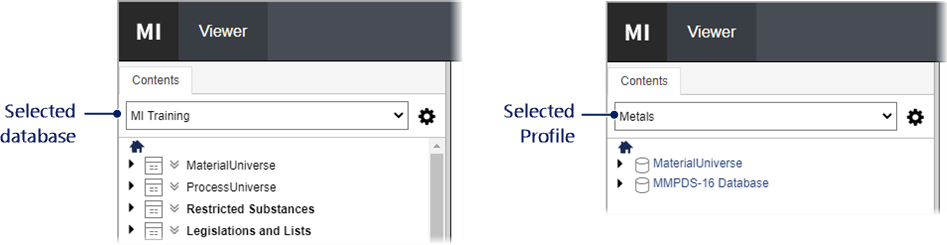
If multiple databases and Profiles are available, you can switch between them.
Your MI Data Administrator may or may not have configured Profiles for use in your system. Profiles can be used to present different sets of data from one or more databases. Profiles can include a home page which you can view at any time by clicking Home.
Users with Grant or Data Administrator MI system security privileges can also see an ‘Everything’ entry at the top of this list which allows them to view all of the databases currently available in your Granta MI system.
Contents tree
The Contents tree allows you to browse the available Tables, folders, and records in the selected Profile or database.
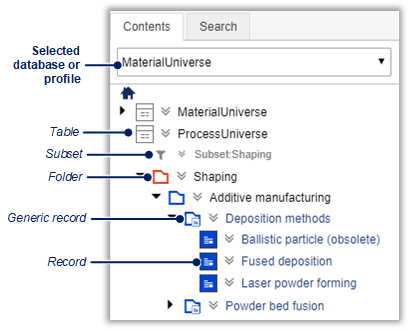
The records shown in the Contents tab are organized into a hierarchical tree structure, Table by Table.
Groups of data records with similar properties are usually grouped together under folders, for example, Elastomers, Shaping, Maraging steel. Folders, which may themselves have data, may be similarly grouped together under other folders.
In version-controlled tables, the Table name is shown in bold, and the version number is shown after folder and record names:
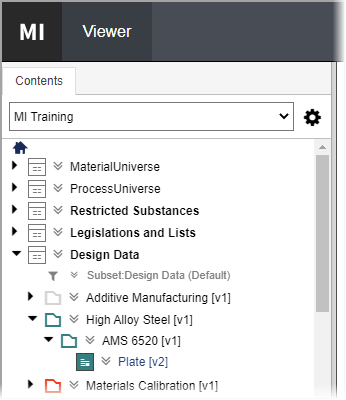
Withdrawn records are not displayed in the Contents tree by default.
Subsets
Subsets are used to simplify your view of the available data, helping you to focus on the data you are interested in, grouping records with common properties together, making it easier to find the records you are interested in.
For example, in the MaterialUniverse® database, the Foams Subset includes relevant records in the Ceramics and glasses folder and in the Hybrids folder:
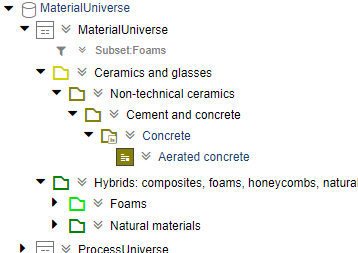
Subsets are defined by your MI Data Administrator and may be associated with a specific Layout. The Subset determines which records you can see in the Contents tree, while the Layout determines which Attributes you can see on datasheets.
In Read Mode, records that are not in the selected Subset will not appear in the Contents tree, and will not be returned in any search results. In Edit Mode, records that are not in the selected Subset are visible in the Contents tree (colored grey), but will not be returned in any search results.
For example, in Read Mode, only metals records are visible when the Metals Subset is selected:
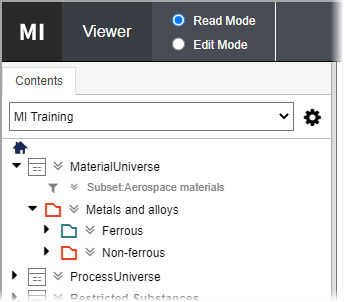
In Edit Mode, folders and records that are not in the Metals Subset are shown in grey when the Metals Subset is selected:
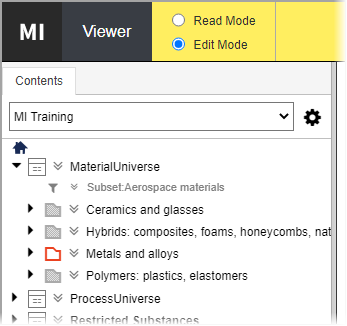
You can switch between subsets by clicking
 next to the Subset name to see the available
Subsets, and selecting the one you want:
next to the Subset name to see the available
Subsets, and selecting the one you want:
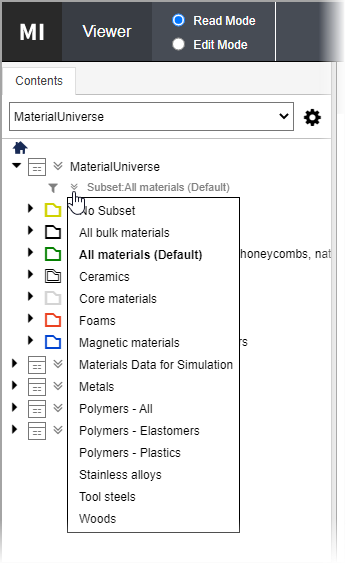
Changing the Subset will automatically change the Layout to the Layout associated with the selected Subset. If you select No Subset, then the default Layout for the table is used.