Exporting data
Data can be exported to both Microsoft Excel files, and to material cards that can be imported into other applications.
-
Select the records to export:
Option Description From the Contents tree In the Contents tree, locate the record and click  Download this
record on the item menu button
Download this
record on the item menu button  .
. From a datasheet From a record datasheet, choose . -
Click
 Download to download the data into a new Excel workbook on
your computer.
Download to download the data into a new Excel workbook on
your computer.
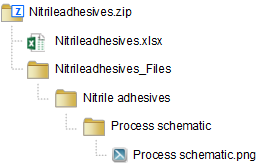
If the record being exported include any file or picture data, such as PDF files or images, the data will be downloaded as a zip file containing the Microsoft Excel workbook and a folder containing the file/picture data.
The Microsoft Excel workbook containing the exported data includes a number of different worksheets.
| Worksheet name | Contains |
|---|---|
| Data | The data being exported is written to one or more Data worksheets. There will be multiple Data worksheets if the data being exported includes Tabular or Functional data. |
| Links | If the data being exported includes static record links, the record link information, including source and target record identifiers, is placed onto one or more Links datasheets. |
| Export Lookup | This worksheet defines which Attributes, Meta-Attributes, record properties, and static Record Link Groups data are exported. |
| Parameter Lookup | This worksheet specifies information about any Functional data parameters, Tabular columns, and Record Link Groups being exported. |
| Import Options | This worksheet specifies options for the naming scheme for multiple data worksheets and for any embedded data files that are exported. It also specifies options used if the workbook is used to import data back into Granta MI. |
Any embedded file or picture data, such as PDF files or images, are placed into a
subfolder named after the Attribute from which they come. For example, the record
Nitrile adhesives in the ProcessUniverse table of the
MaterialUniverse database includes a process schematic: when this record is downloaded, the
result is a zip file Nitrileadhesives.zip containing the Excel workbook
and a folder with the picture data file: