


Logging
View or change application logging options, or to download log files.
- MIViewer.log – application error, warning, information, and debug messages.
- Sessions.log – user session information, showing who has logged into MI Viewer.
- RoundTripInfo.log – round-trip information.
The logs are set to roll over on a daily basis. The log files from the previous day have their date appended, for example, MIViewer.2023-05-18.log.
Logging level
The logging level determines the amount of information that is written into the MI Viewer.log file.
The higher the logging level, the more information that is written to the log file. You can change the logging level permanently or just for the current MI Viewer session from the Logging Level panel on the Logging tab.
- OFF - no events will be logged in MI Viewer.log
- ERROR - Log only runtime errors or unexpected conditions, where software has not been able to perform some function.
- WARN - In addition to errors, also log information about less serious problems that did not result in an unrecoverable error.
- INFO - In addition to errors and warnings, also log information relevant to the general running and management of your system, where things are working as expected. This is the default logging level for MI Viewer.
- DEBUG - This is the most verbose logging level, including detailed information about all event types that may diagnostically helpful to developers, IT, and system administrators.
- ALL - All events, including Debug, Info, Warning, Error, and Trace.
Logging options
- Round-trip logging
-
Round-trip information for MI Viewer requests (URL, user, and time taken) may be logged, enabling you to monitor the availability and performance of MI Viewer processes
When enabled, round-trip information is written to RoundTripInfo.log.
Note: Round-trip logging is disabled by default as it degrades application performance and can result in very large log files. For that reason, Ansys recommends enabling round-trip logging only if instructed to do so by Technical Granta Support. - Show page load statistics
- Data on page load and round trip times may be viewed in MI Viewer:
- Data for the tree view will appear in a Debug tab on the left of the application window
- Data for the page shown in the main pane will appear at the bottom of the page.
Download MI Viewer log files
Log files containing application error, warning, information, and debug messages, may be downloaded from the Download MI Viewer log files panel. Log files are downloaded in a zip file.
- To download a single log file, under Single Log File select the file from the list and click Download Log File. By default, all log files from the last 7 days are listed here. To see more or fewer log files in the list, enter the Time span and click Apply filter.
- To download all log files from a specified time period, choose the start and end dates and then click Download All Log Files. The files will be downloaded as a single zip file.
Download MI Server Logs
- Daily MI Server application logs that include startup and shutdown information, errors, warning messages, and additional information.
- Notifications logs, containing information on MI Server notifications service events.
- Data Updater logs.
- Elasticsearch service logs
Download MI Application Activity Summary
- For a file that includes a summary of usage for the current month and the previous two months, select Last 3 months then click Download.
- For information on usage over specific time period, select the start and end months, then click Download.
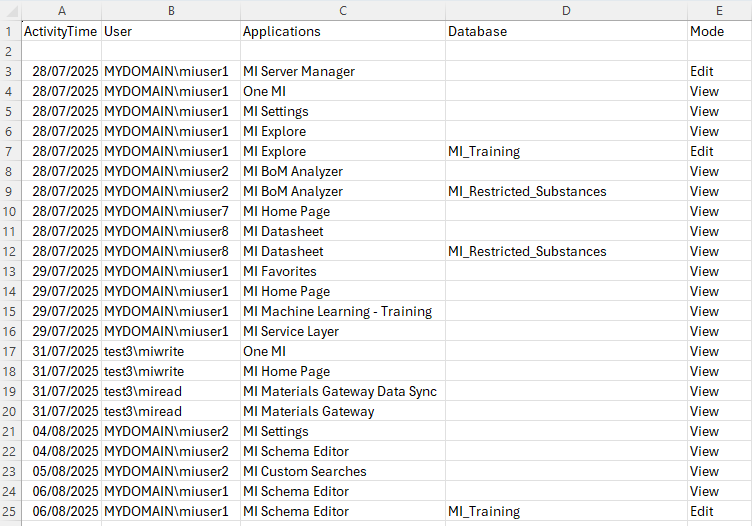
Dates in the Application Activity Report are recorded in ISO format, yyyy-MM-dd. This ensures that, when the file is opened in Microsoft Excel, the date field will be interpreted correctly, regardless of your locale, allowing the data to be used in tables and graphs more easily.