If you need to update multiple materials, or change multiple values for the same
material, you can export the existing data, editing the values in Excel, and then re-import
the modified data.
-
In MI Explore, find the material you want to modify and double-click it to open the
datasheet.
-
Click .
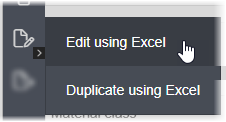
An Excel workbook containing all the material
record data is created.
-
Save this file and then open it in Microsoft Excel.
-
Edit the data values in Excel.
-
Each category of curve data has its own worksheet where you
can view, add or modify temperature-dependent properties, or stress-strain or fatigue
curves.
- You can specify the units for your graph data.
- Use the Graph tab to see the curves you have entered.
- When curve data exists for a property, it take precedence over the room
temperature data when the material is used for simulation.
-
When you are finished, save the Excel workbook.
-
Now import the data from Excel to update the material records:
-
Open MI Import.
-
Load the file you just edited by browsing, or by dragging it onto the blue
outlined area.
-
You can enter a job name, or just use the default one, which is the Excel
filename.
-
Click Import.
To verify your edits, go back to the Design and Simulation Materials dataset in the
Explore app, find the modified material and view its datasheet.
To verify modified curve data, click Show all data to view the
data points, or Plot curves to view the data as a curve.


