Database configuration for FILESTREAM data

Where data storage for your MI cluster is provided by Microsoft SQL Server running on on-premises servers or in Azure virtual machines, the Miconfig database must be configured to use FILESTREAM storage.

Prerequisites: The Miconfig database must already be installed in SQL Server and the required login access configured as described in Creating Granta MI SQL logins.

FILESTREAM data must be stored in FILESTREAM filegroups.

  1. Open SQL Server Management Studio and connect to the SQL instance.
  2. Right-click the Miconfig database and choose Properties.
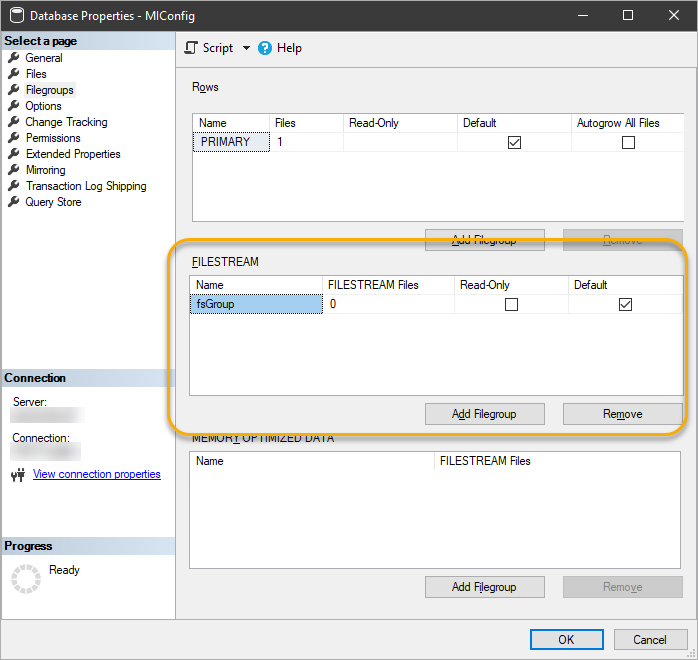
  3. Click Filegroups in the pages list.
  4. In the FILESTREAM panel, add a new filegroup:
    1. Click Add Filegroup.
    2. Enter a name and select the Default check box.
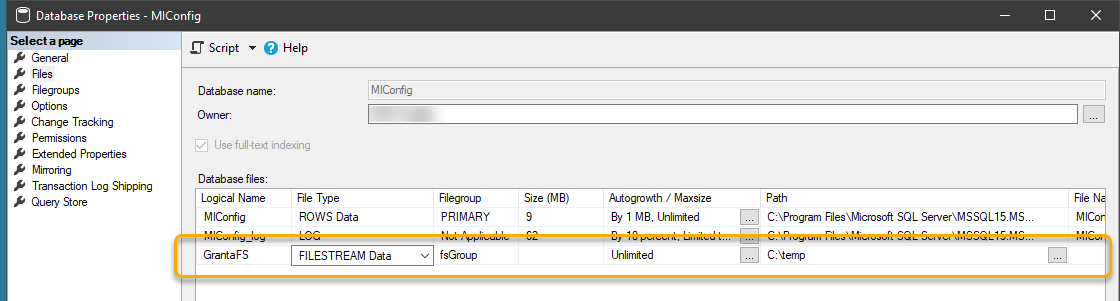
  5. Now add a new FILESTREAM Data file:
    1. In the pages list, click Files.
    2. Click Add.
    3. Enter a name for the new file in the Logical Name column, for example GrantaFS.
    4. in the File Type column, choose FILESTREAM Data.
    5. In the Path column, enter the location of the file on disk.
      This must be a drive which has enough space to store files.
  6. Click OK to save your changes to the Miconfig database.