


Managing your own account
Go to the Me page to view your own Granta MI account information and see which Teams, Roles, and Projects you are a member of.
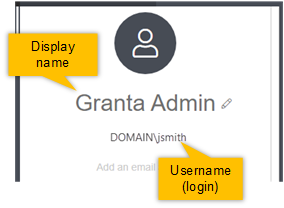
Your account details are shown in the left panel. You can click the tabs to manage your Teams, Roles, and Projects.
-
You can edit your user details:
Option Description Display name Your display name is used to identify you within MI User Manager. All users can change their own Display name. Username The username you use to log into Granta MI with. You need to be an MI Data Administrator to edit usernames. Email address The Email Address field is not used in systems with Windows Authentication (where you log in to Granta MI with your Windows Active Directory credentials).
In Granta MI systems with User Manager authentication, you can edit your email address and change your password here. Your password must include:- 6 or more characters
- At least 1 of each of the following characters: uppercase alphabetic, lowercase alphabetic, numeric
- At least one special character (not alphabetic and not numeric), for example, @, #, $, %, *, +, =.
You can see the Teams, Roles, and Projects your MI Data Administrator has
assigned you to. MI Data Administrators can change their own group memberships
here.
-
To provide access to Teams, Roles or Projects: