


Adding Attributes
The Attributes that are available in the schema determine the types of data that can be stored in a table. You can add Attributes, modify, or remove Attributes from a table.
| Attribute Information | Description |
|---|---|
| Name | The name of the Attribute. |
| Data Type | The type of data that the Attribute stores. |
| Unit or Discrete Type | The Units for this Attribute or the Discrete Type. |
| Meta-Attributes |
Any Meta-Attributes that are associated with the Attribute. Meta-attributes allow metadata, or subsidiary information, such as statistical information or notes about the sources of data to be stored alongside the data value. See Meta-Attributes |
| Search Filters | Whether the Attribute can be used to refine searches. |
| Parameters | A list of the parameters that the Attribute requires. |
| Columns | Only used for tabular Attributes, a list of the Tabular Columns that are linked. |
| Expressions | A list of the expressions used in Equations and Logic Attributes. |
| Data Validation Rule | Any data validation rules that apply to the Attribute value. |
| Target Available | For Attributes that reference other datasources, this indicates whether the Linked tables are currently connected. |
| Is Multivalued | Whether multiple values are valid for Point Attributes. |
| Help Path | The path to an html file that provides additional information about the Attribute. |
| Used in layout | A list of the layouts that contain this Attribute. |
-
Select the Data type and add the Attribute
Name.
Properties that are specific to the type of data will be displayed, along with any applicable Meta-Attributes and Parameters. For more information, see:
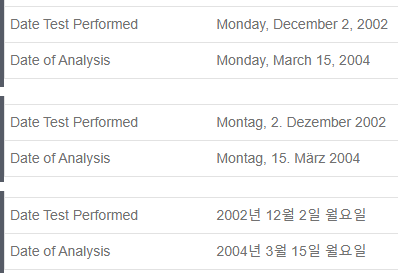
Data Type Description Properties Date Date Attributes (DAT) are used to store calendar dates, for example, Saturday, January 1, 2000.
The display of Date values depend on regional date and time settings, for example:
Date Attributes File Data such as supplier datasheets, reference documents, and substance lists, can be stored in File Attributes. A range of different file types are supported, for example, Microsoft Office documents, text files, PDF files. Files up to 500 MB in size can be stored.
File Attributes Hyperlink Hyperlink Attributes are used to store links to external resources (website links and email addresses).
Hyperlink Attributes Picture Picture Attributes can be used to store images in records, for example, schematics or BH curves. Image files up to 10 MB in size are supported. Picture Attributes Functional Store data which is a function of one or more parameters. There are three different functional types: - Float Functional Attributes store a point or range value which is dependent on one or more discrete (text) or numerical parameters. Values are stored to a maximum of 15 significant figures.
- Discrete Functional Attributes store a discrete text value which is dependent on one or more discrete text or numerical parameters.
- Equations and Logic Attributes store numerical data as an expression that describes how the value varies dependent on one or more parameters.
- Float Functional Attributes
- Discrete Functional Attributes
- Equations and Logic AttributesNote: Equations and Logic Attributes can only be managed using MI Admin.
Logical Store Boolean data (
Yes/No,True/False).Logical (Boolean) Attributes Numerical Store numeric data in three different data types: - Integer Attributes store numbers that are whole, or without a decimal point.
Point Attributes store exact numeric data with decimal points.
Point values may be entered as an integer or decimal, or formatted with an exponent, and values are stored to a maximum of 15 significant figures.
Values must be within the range:- 1.5e-45 to 3.4e38
- 1e-039 to 1e+038 for positive values
Multi-value Point Attributes can have a range of data values based on one or more parameters.
Range Attributes store a pair of numeric values representing the upper and lower bounds of a value range.
Values may be entered as an integer or decimal, or formatted with an exponent.
Values are stored to a maximum of 15 significant figures, and must be within the range:- ±1.5×10-45 to ±3.4×1038
- 1e-039 to 1e+038 for positive values
open, meaning that only the maximum, or only the minimum value is defined. The upper and lower boundaries may be inclusive or exclusive.
Tabular Tabular Attributes are used to store complex data that is displayed as a table of rows and columns. Tabular Attributes are often used to provide a summary of information related to the record. Tabular Attributes Text Text can be stored in one of three different data types: Short Text Attributes are used for short (up to 255 characters) alphanumeric values.
A uniqueness constraint on Short Text Attribute values can be enforced, to ensure that no duplicate values can be entered within the same Table. This allows the Attribute to be used as a record identifier, for example, CAS Number, UNS number, EID, Supplier Number.
Long Text Attributes are used for longer blocks of text, up to a maximum of 1,048,576 characters.
The text in Long Text Attributes can be formatted with Markdown if required, for example, to provide headings, and font and list formatting.
Discrete Attributes are used to provide a choice of one or more discrete text values. Values may be ordered or unordered, and there is no limit on the number of values in the set.
The set of permitted values is defined by the Discrete Type of the Attribute. Discrete Attributes which can have more than one value at the same time are known as "multi-value Discretes".
Text Attributes