Using Battery Designer

Instructions for using the Synthesizer tool's Battery Designer.

Click Synthesizer on the main toolbar and under Battery Designer, click the required model type:

  • Cell to Module (specified by number of cells)
  • Cell to Module (specified by performance)
  • Module to Pack

Cell to Module models

Specify your required module properties, then click Create to synthesize the Module record(s). The records will be added to the Battery Cells table under My Records > Synthesized > Modules.

Click Previous to go back and choose a different model.

Module
  • Enter a Module name - this is used to name the synthesized records, and browse to select a Battery cell.
Performance (Cell to Module (specified by performance) only)
  • Enter the target Discharge time, Current and Voltage for the module. You can enter a single value or a range (e.g. 12-20 V).
    Note: Modules must have integer numbers of cells. If the target ranges are too close together, some generated modules may have identical numbers of cells. If this is the case, only one record for each instance will be created.
Number of Cells (Cell to Module (by number of cells) only)
  • Enter the required Number of cells in parallel and Number of cells in series.
Discharge (Cell to Module (by number of cells) only)
  • Enter the target Discharge current for the module. You can enter a single value or a range (e.g. 0.1-0.2 A).
Configuration
  • To choose a pre-defined module configuration:
    1. Select the Pre-defined module check box.
    2. Select a module type from the list:
      • Industrial
      • Automotive
      • Shrink wrap
  • To specify custom module properties:
    1. Select the Custom configuration check box
    2. Click Browse... to select a Casing material and Insulation material.
    3. Enter the corresponding Wall thickness or Insulation thickness. (Default values are 1 mm for Wall thickness and 5 mm for Insulation thickness.)
    4. Enter the Cell spacing within the module (default is 1 mm).
    Note: If both check boxes are selected, the current Custom configuration values will be used. If neither check box is selected, all Configuration values used in the calculations will be set to zero.
Thermal management system (TMS)
  • Select a cooling system from the list:
    • None
    • Passive air cooling
    • Active air cooling
    • Liquid cooling
    • Dielectric cooling

Module to Pack model

  • Specify your pack requirements, then click Create to synthesize Pack record(s). The records will be added to the Battery Cells table under My Records > Synthesized > Packs.
  • Click Previous to go back and choose a different model.
Pack
  • Enter a Pack name (this will be used to name the synthesized records), and click Browse... to select a Module from the browse tree. You can use a cell record from the datatable, or your own synthesized Module record.
Number of Modules
  • To calculate number of modules from performance requirements:
    1. Select the Specify by performance check box.
    2. Edit the target Voltage window, Discharge time and Discharge current as a single value or a range (e.g. 3.3-3.7 V).
      Note: If both check boxes are selected, the synthesized records will be specified by performance. If neither check box is selected, the synthesized records will be specified by the number of modules in series or parallel.
Packaging
  • Select the Custom configuration check box to enter packaging materials and geometry:
    1. Click Browse... to select a Casing material and Insulation material.
    2. Enter the corresponding Wall thickness or Insulation thickness. (Default values are 1 mm for Wall thickness and 5 mm for Insulation thickness.)
    3. Enter the Module spacing within the Pack (default is 1 mm).
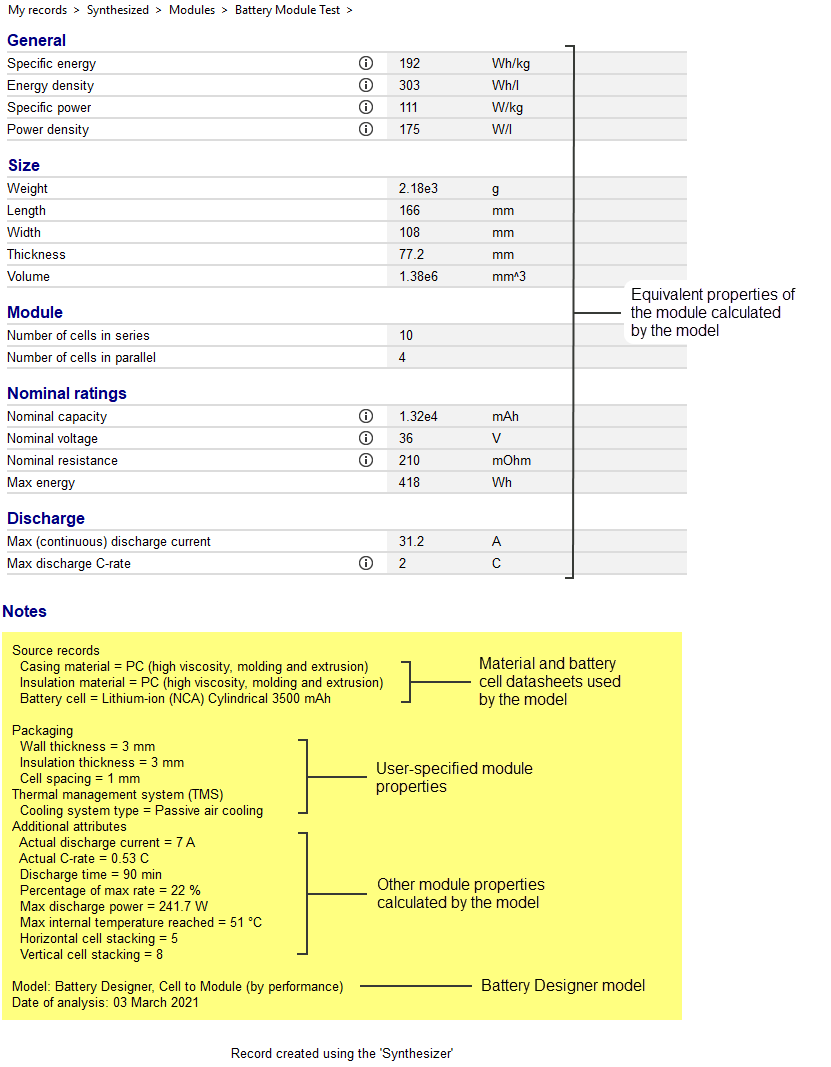
    The Notes field contains information about the model, cell, configuration and cooling system used. It also lists additional properties calculated by the model.