


Impersonation
Users who are members of the MI Data Administrator or MI Grant system security role can 'impersonate' a user with a different (less privileged) system or database security role for testing purposes.
While you are impersonating a role, you can access only the MI Viewer features and data available to users who are members of that role.
Impersonation tools are accessed from :
- On the toolbar, click Settings and then click the Impersonation tab.
- Under ''System user roles to impersonate', select a system security role.
- Under 'Database user roles to impersonate', select a database and a database security role, if implemented in the selected database.
- For Read or Write roles, you can specify the required access control permissions by selecting/clearing the check boxes.
- Click Perform Impersonation.
You can now use MI Viewer with the access restrictions that you have specified. A warning is displayed at the top of the main page to remind you that you are working in "impersonation mode" and operating with restricted privileges, for example:
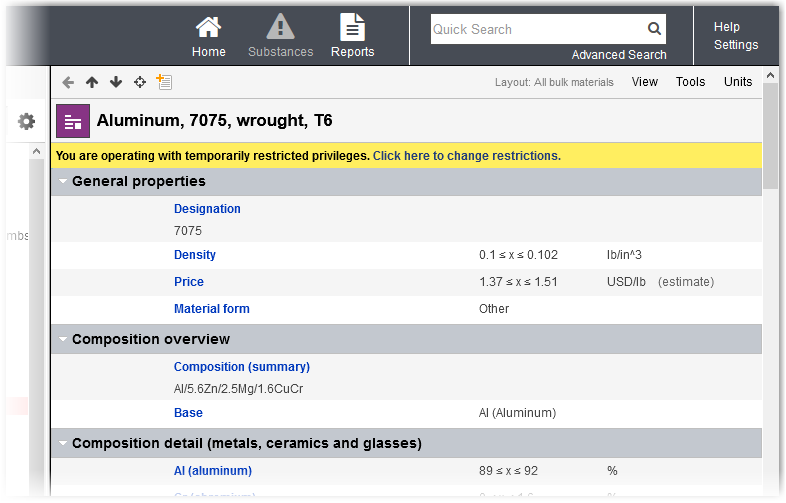
To restore your normal Granta MI privileges
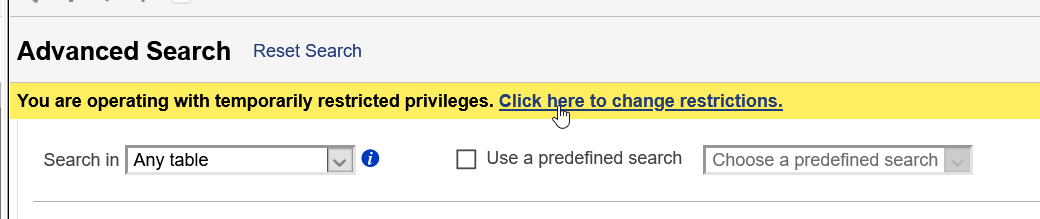
- Click the Click here to change restrictions link in the
warning displayed at the top of the main page in MI Viewer to open the Impersonation
page again, for example:
- Click Stop Impersonation.