Using Subsets
Subsets are used to simplify your view of the available data in MI Viewer, helping you to focus on the data you are interested in.
Subsets are used in Granta MI to group records with common properties together, making it easier to find the records you are interested in in the Contents tree.
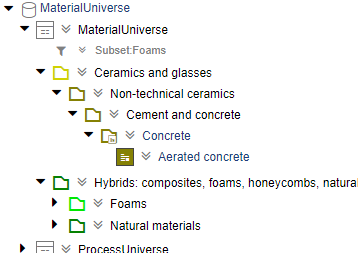
For example, in the MaterialUniverse® database, the Foams Subset includes relevant records in the Ceramics and glasses folder and in the Hybrids folder:
Subsets are defined by your MI Data Administrator and may be associated with a specific Layout. The Subset determines which records you can see in the Contents tree, while the Layout determines which Attributes you can see on datasheets.
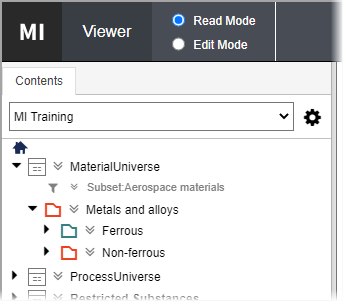
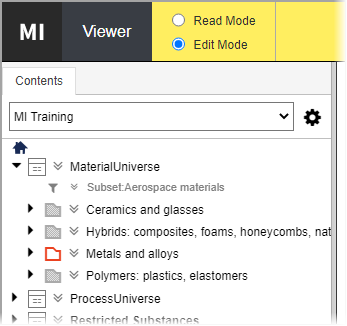
In Read Mode, records that are not in the selected Subset will not appear in the Contents tree, and will not be returned in any search results. In Edit Mode, records that are not in the selected Subset are visible in the Contents tree (colored grey), but will not be returned in any search results.
For example, in Read Mode, only metals records are visible when the Metals Subset is selected:
In Edit Mode, folders and records that are not in the Metals Subset are shown in grey when the Metals Subset is selected:
To switch to a different Subset
In
the Contents tree, click  next to the
Subset name to see the available Subsets, and select the one you want:
next to the
Subset name to see the available Subsets, and select the one you want:
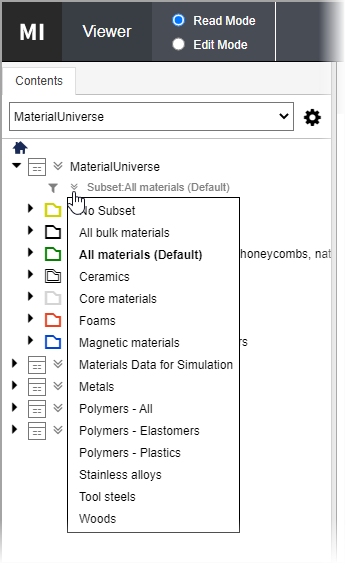
Changing the Subset will automatically change the Layout to the Layout associated with the selected Subset. If you choose No Subset here, then the default Layout for the table is used.
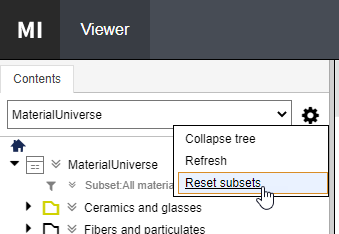
Reset Subsets
You can quickly switch back to
the default Subset for all tables in your current Profile by clicking Reset
Subsets on the Contents tab  menu:
menu: