Tools menu

The Datasheet Tools menu contains options for interaction with the record you are viewing.

Add to list

Add the current record to the Record List

Copy record ID details to clipboard

Copy identifier information for the current record to the clipboard. This includes the following information:

  • RecordGuid (the record unique identifier)
  • RecordHistoryGuid (the record version identifier)
  • Table (the name of the Table in which the record is located)
  • DatabaseKey (the database key - dbkey - of the database in which the record is located)
  • FullName (the full record name)

The information is copied in tab-separated format. For example:
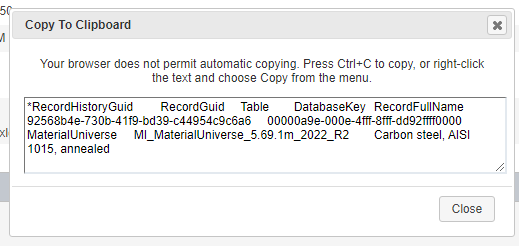
This information can be used as input in the Excel Exporter and Record Manipulator plug-ins in MI Toolbox.

Export Material Card

Export material card information from the datasheet. See Exporting Material Cards.
Note: Only Attributes and Meta-attributes that you can see on the datasheet (that is, that are included in the current Layout) are exported.

Download this record to Excel

Download data from the record to an Excel spreadsheet. See Exporting data to Excel.

Note that only Attributes and Meta-attributes that you can see on the datasheet (that is, that are included in the current Layout) are exported.

Find substitutes for this record

Run a substitution search with the current record as the reference record. See Search for substitutes.

View related records

See a list of Tables that may contain records linked to the current record via Tabular Attributes.
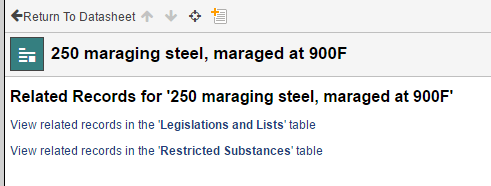
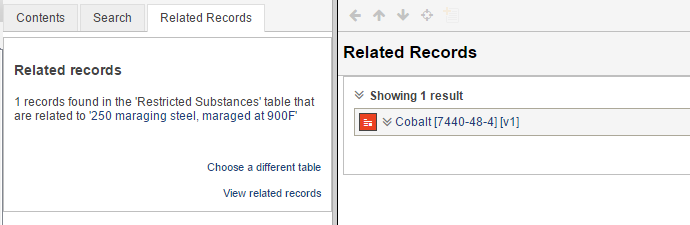
Clicking on an item here will show the records in that table, for example:
Watch data

Choose Attributes in the current record to add to your watch list. See Watching records and data.

Watch this record

Add the current record to your Watch List. See Watching records and data.

Copy record URL to clipboard

For non-Admin users, this saves the URL of the current record to your clipboard.

For Admin users (users with MI Adminstrator privileges) this opens a page where you can generate a URL for sharing, that includes a range of different parameters specifying the required view settings. This can include:
  • Link to datasheet: a link to the current datasheet.
  • Include your current User Preferences: your current settings for Application and Search options, Show/Hide empty items, and Read mode/Edit mode as parameters to the URL. These settings will override the user’s current settings when they use this link.
  • Include your Database Preferences: your current Subset, Layout, and unit system database settings. These settings will override the user’s current settings when they use this link.