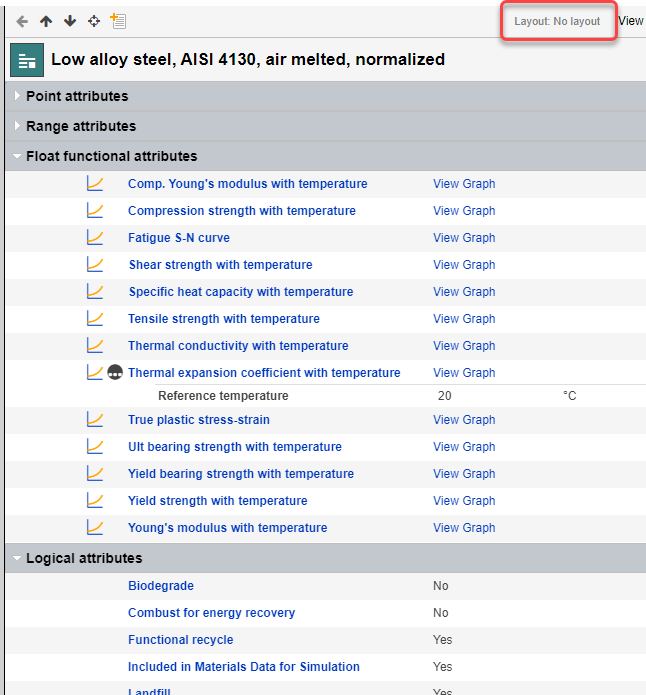
Working with datasheets
Datasheets provide a view of the data in a record, organized under a number of headings, for example, General information, Designation, Bio-data, Mechanical properties, Substrate information.
Video: Working with datasheets [1:28]
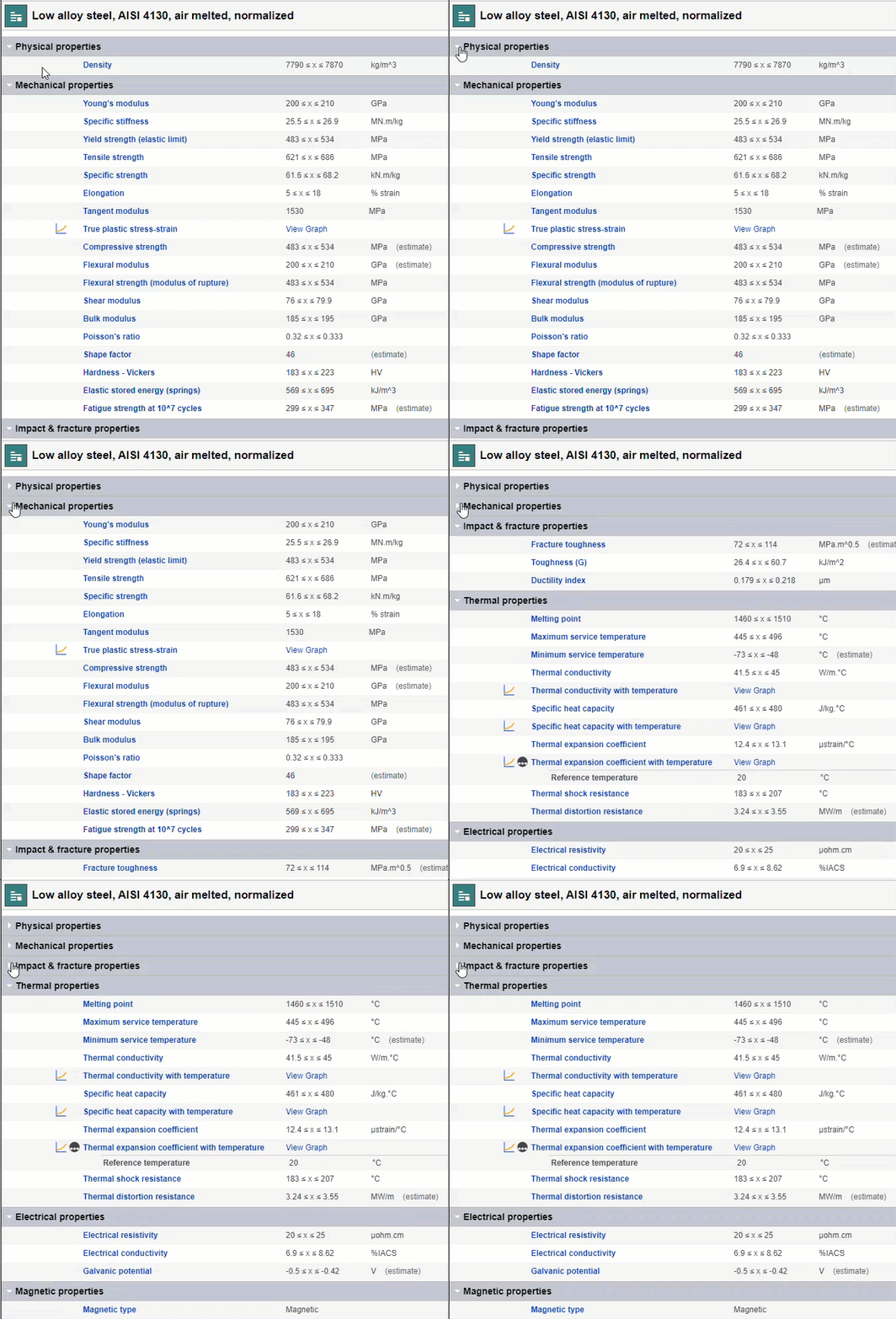
To collapse an individual heading, hiding all of the data under it, click the arrow at the front of the heading label. Click again to expand the heading and show all the data under it again.
To collapse or expand all of the headings on the datasheet: on the View menu at the top of the datasheet, click or .
Layouts define what you see in datasheets - the headings as well as the Attributes, Meta-attributes, and record links that appear under them, and the order in which all this information appears. You may see different headings and Attributes if you view the same datasheet using a different Layout, or with no Layout at all.
You can see the name of the current Layout at the top of the datasheet:
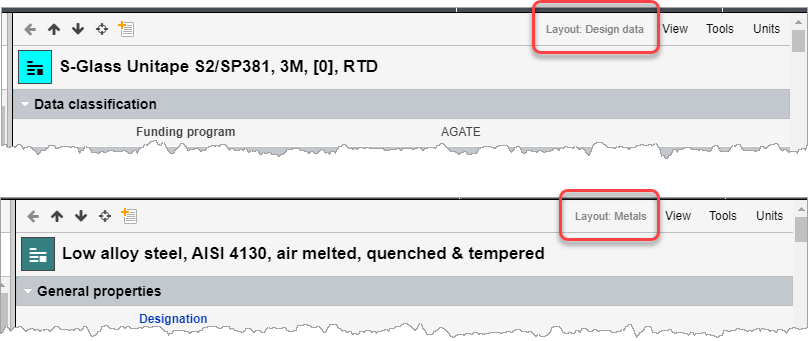
Layouts are usually linked with specific Subsets, and when you select a different Subset for a Table in the Contents tree, the Layout associated with that Subset will be selected by default in the datasheets for all of the records in that Table.
You may be able to choose a different Layout from the datasheet View menu. The Layout you choose will then be used on datasheets for all records in the same table. Choosing No Layout will show Attributes organized by data type, for example.