On the Comparison Table Report page, you can review the data and remove any columns or
records you do not want. You can also modify Functional data parameters, and change the units
used for numerical data.
-
Click the X next to the name of a record or a columns to remove it from the
report.
-
To transpose the rows and columns, click Transpose Table.
Note that this only applies when viewing the report on screen: the default
row/column Layout (records=rows, Attributes=columns) is used when saving the data to
the clipboard, to a CSV file, or as an Excel report.
-
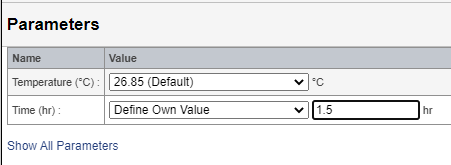
To modify the parameters for functional data in the table, in the menu bar at the
top of the page, click Tools > Change parameters. For example:
-
To change the units used in the table: in the menu bar at the top of the page,
click Units and choose a unit system.
-
To view a printable version of the table: in the menu bar at the top of the page,
click View > Printable Report and then print it using your browser's
Print function.
-
To add Attributes or record properties to the report, or to change the report
options, click Modify Report at the top of the page to go back to the Select
Report Content page.