


MI Materials Gateway for CAE users
Granta MI Materials Gateway is an embedded app within Abaqus/CAE®, Ansys Electronics Desktop®, Ansys Workbench®, or HyperMesh™ that gives you access to your Granta MI Pro materials database. You can search for preferred materials, view favorites, and assign or import materials for use in CAE simulation.
Here's a quick guide to the features available in the Gateway app.
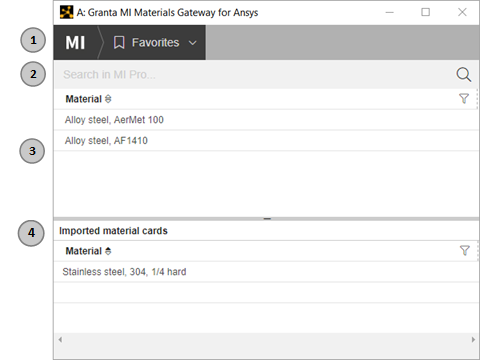
- Navigation bar - View favorites, run an advanced search, or import CAD assignments that have been provided as a file (in Ansys Electronics Desktop, Ansys Workbench, or Abaqus/CAE). You can also view Help (opens in a separate browser window) and update your settings.
- Search bar - Search for a material by name.
- Use the upper half of the Gateway window to find materials to assign (Hypermesh) or import (Abaqus/CAE, Ansys Electronics Desktop, Ansys Workbench).
- Use the lower half of the Gateway window to view and manage the materials that have been assigned (HyperMesh) or imported (Abaqus/CAE, Ansys Electronics Desktop, Ansys Workbench).
Starting Gateway from Abaqus/CAE
To start Gateway from Abaqus/CAE, select Plug-ins from the menu bar, and then MI Materials Gateway > Launch MI Materials Gateway.
Starting Gateway from Ansys Electronics Desktop
With a project open in Ansys Electronics Desktop, do either of the following:
- Select Tools from the menu bar, and then Toolkit > MI Materials Gateway .
- View the Edit Libraries window (for example, in Project Manager, right-click Materials and select Edit Libraries), and click MI Materials Gateway.
You can then import Granta MI materials to your currently active project.
Starting Gateway from Ansys Workbench
To start Gateway from Ansys Workbench, create a Granta MI component system, and then edit the MI Materials Gateway component to open the Gateway app. You can then import materials to the Engineering Data component, where they can be shared with other systems on your workbench.
Starting Gateway from HyperMesh
To start Gateway from HyperMesh:
- If you are using HyperMesh as a standalone application, view the MI Materials Gateway tab in the left-hand panel, and then click the MI Materials Gateway tile.
- If you are using HyperMesh within HyperWorks Desktop, select MI Materials Gateway > Launch MI Materials Gateway from the menu bar.
You can then assign materials to components in your part geometry.