
Aborting an Analysis
Opening the Abort Job menu
The Abort Job pop-up menu can be opened by any of the following options:
-
Right click on the Progress window.
-
Click on the drop-down button next to the progress bar(s).
-
Click the Abort Job button in the Job Monitor dialog.
Abort Methods
To abort any running job submitted through either Ansys HPC Platform Services or Ansys Cloud Burst Compute, you can either Abort, Clean Stop, or Hard Abort the job. Using either of these abort types, debug logs can be collected from all compute nodes in the job.
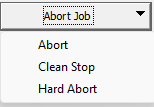
To end the solution process before it is complete, open the Abort Job drop-down menu and select Abort.
The solver ends the analysis immediately. The data for the currently running adaptive pass, frequency point, time step, or variation is lost. Previously completed solutions may or may not be retained (depending on what process was interrupted by the Abort command). If you want to ensure that the results of all completed solutions are saved, use Clean Stop instead of Abort.
To abort the solution process after the current
The analysis ends after the currently running adaptive pass, frequency point, time step, or variation has been solved. Solutions completed before the stop request are retained.
If the selected scheduler is HPC Platform Services or Ansys Cloud Burst Compute, the Hard Abort option will be available under the Abort Job button drop-down menu in the Job Monitor dialog. Use Hard Abort if the simulation is hanging and does not respond to Abort. Any intermediate files that can be collected will be placed in the downloaded results under archive abort_intermediate_results.zip.
Linux
For Linux, you can use TERM commands. Sigterm handling
is done in the Desktop library. You can abort a running batchsolve
by sending a TERM signal to