Properties Window

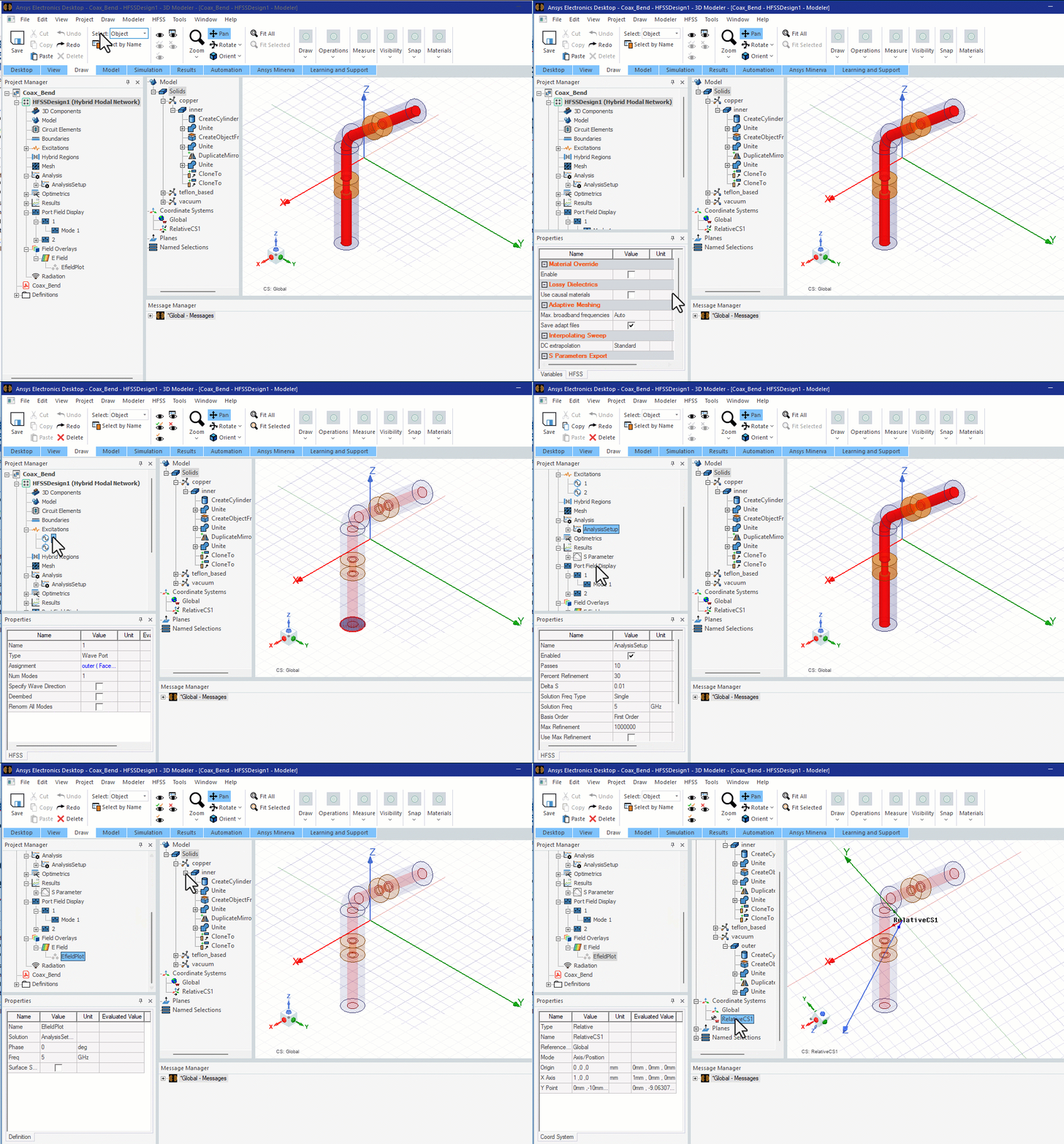
The Properties window displays and allows you to edit the properties of an item selected in the project tree, the history tree, or the 3D Modeler window. The properties shown and their editability vary depending on the type of item selected.

You can choose to show or hide a docked Properties window as part of the desktop by clicking on View > Properties. You can move and resize the docked Properties window within the desktop to suit your work style.

When the Properties window is docked, it displays the properties of any item you select in the Project tree, the History Tree, or the 3D Modeler window. Select View > Properties to remove the docked properties window.

HFSS Application Window. Project Manager window opened with project tree expanded. Next to it, the design area with a 3D model.

Regardless of whether or not you display a docked Properties window on the desktop, you can open an undocked Properties dialog box for any item in the project tree or history tree by double-clicking the item or right clicking and selecting Properties. Note that when the properties of an object are opened this way, the dialog box may have different tabs, and this window is not dockable. To distinguish between these two displays, the documentation will refer to the dockable properties pane to the Properties window, and the free-standing, undockable window as the Properties dialog box.

An example of the Properties dialog box for a solid model object follows. For solid model entities and sheets, the Properties window and the Properties dialog box are nearly identical.

Properties window, Attributes tab.