
LPV ROM Parametric Setup
LPV ROM Parametric Setup enables you to quickly create a parametric setup for state-space characterization. The toolkit provides options to model velocity (opening boundary) or heat transfer coefficient (wall boundary).
Note:
See Getting Started with Icepak - LPV ROM for a workflow related to this feature.
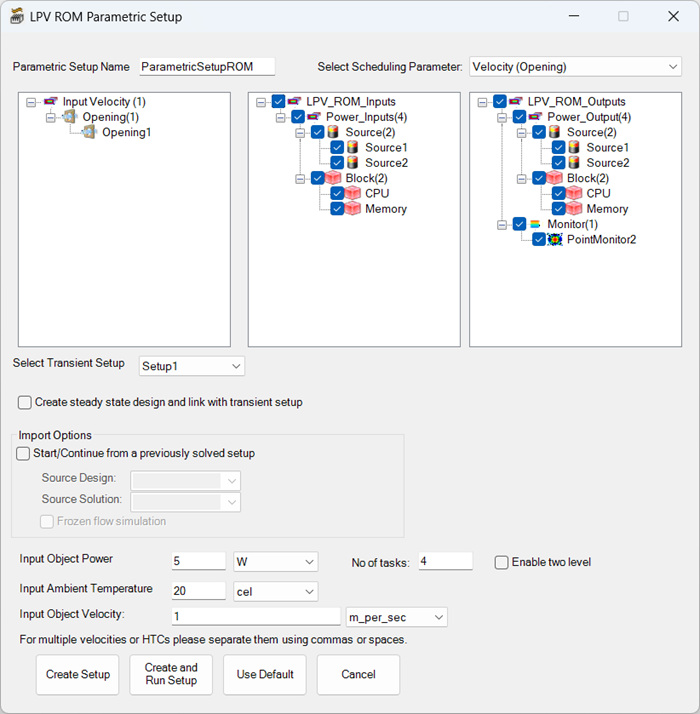
| Parametric Setup Name | Enter a name for the parametric setup. |
| Select Scheduling Parameter | From the drop-down list, select Velocity (Opening) or Heat Transfer Coefficient (Wall). |
| Inputs and Outputs | Select the flow and thermal inputs and the outputs. |
| Select Transient Setup | Select the transient solution setup. If needed, enable Create steady state design and link with transient setup. |
| Import Options | Select Start/Continue from a previously solved setup to link to the steady-state design. Select the design and solution from the drop-down lists. If the steady-state design solves for flow and temperature, select Frozen flow simulation. |
| Input Object Power | Specify the power for the input objects for the parametric trials. |
| Input Object Velocity | With Velocity (Opening) specified as the scheduling parameter, specify the flow for the opening for the parametric trials. |
| Input Object HTC | With Heat Transfer Coefficient (Wall) specified as the scheduling parameter, specify the heat transfer coefficient for the wall for the parametric trials. |
| No. of tasks/Enable two level | If needed, edit the number of tasks for the solver to run and enable two-level high performance computing. |
| Create Setup | Click Create Setup to create the parametric setup, which is listed under Optimetrics in the Project Manager. |
| Create and Run Setup | Click Create and Run Setup to create and run the parametric setup. |
| Use Default/Cancel | Click Use Default to restore the default settings. Click Cancel to close the LPV ROM Parametric Setup toolkit without creating and running a parametric setup. |