
Generating the Mesh
After you have defined global mesh settings and assigned locally refined mesh regions, you can generate the mesh.
To generate the mesh:
Note:
If you have not yet saved the project, Icepak will prompt you to do so before generating the mesh.
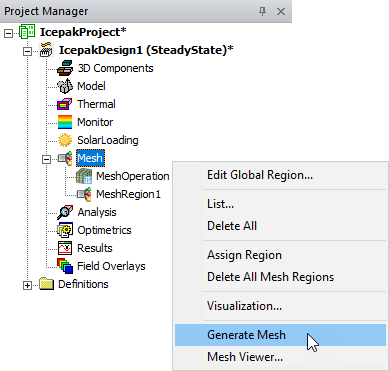
- In the Project Manager, right-click Mesh and select Generate Mesh.
- You can monitor the progress of the mesh generation in the Progress window. When mesh generation is complete, a message is displayed in the Message Manager window.
Note:
Before meshing, Icepak checks the design for the following issues:
- Mesh regions intersecting one another
- Sheets assigned a thin conducting plate boundary condition intersecting a mesh region
- Network faces blocked by a hollow object (an object with Solve Inside disabled)
When Skip Intersection Checks in the Icepak Design Settings is disabled, the solver checks the design for the following issue:
- Polygonal or inclined geometry assigned a boundary condition that intersect a mesh region
If a mesh region intersects another, meshing is aborted with an error message. If any other issues are found, a warning message is displayed in the Message Manager, and the analysis proceeds.