
Launching Ansys Electronics Desktop
Follow the instructions below to launch Ansys Electronics Desktop in either Windows or Linux.
Windows:
Once you have installed Ansys Electronics Desktop, start the program using one of the following methods:
- From the Start icon, select All, and then select Ansys EM Suite 2026 R1> Ansys Electronics Desktop 2026 R1.
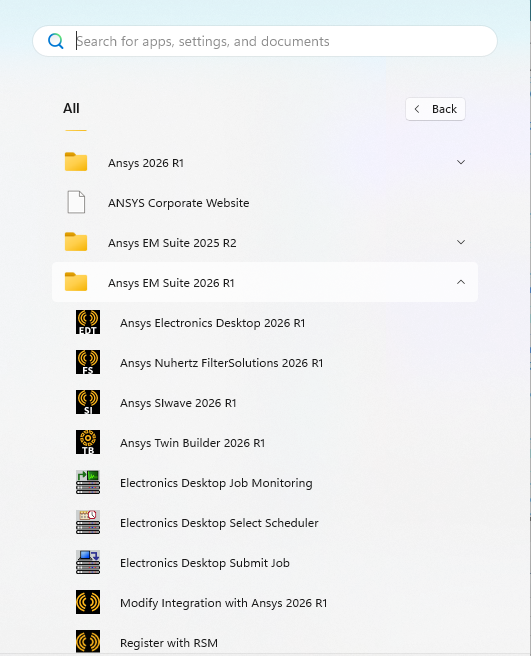
If the program fails to start, ensure that:
- You have installed the licensing option provided to you. For detailed information on installing the software and licenses, see: Ansys EM Suite Installation. This topic provides links to the Ansys installation guides (Windows and Linux) and product-specific platform support information.
- Ansys QA Services are not enabled. To disable, change the value of the ENABLE_ANSYS_QA_SERVICES environment variable to 0.
High DPI Systems
If the program starts but graphics seem very small, Windows may be running on a high DPI display. In this case, it may be necessary to change high DPI settings and enable DPI Scaling in the program's properties. Consult Microsoft Windows documentation for the latest instructions for doing so.
Linux:
On Linux systems, an interactive Ansys Electronics Desktop session can be launched either from the command line, or from a GNOME-compliant desktop environment. The graphical session must be running directly on the machine's console or via a remote connection like VNC.
Launching AEDT from the command line:
When AEDT is installed, a sub-directory is created under the installation directory: /v261/AnsysEM/. This directory contains the software executable files and wrapper scripts.
To launch AEDT from the command line, invoke it via its wrapper script. If, for example, AEDT has been installed in the /opt/ansys_inc/ directory, the wrapper would be:
-
/opt/ansys_inc/v261/AnsysEM/ansysedt
When this command is run for the first time on a machine, messages will be printed to the terminal as the software automatically configures itself. AEDT will then launch.
The installation directory contains a file named ansysedt.exe. Do not attempt to run this directly. The corresponding wrapper scripts perform essential environment setup tasks that the software needs to function properly.
Starting from GNOME desktop:
-
Click the Activities button on the GNOME panel to show installed applications:

-
Click the icon for Ansys EM:
