
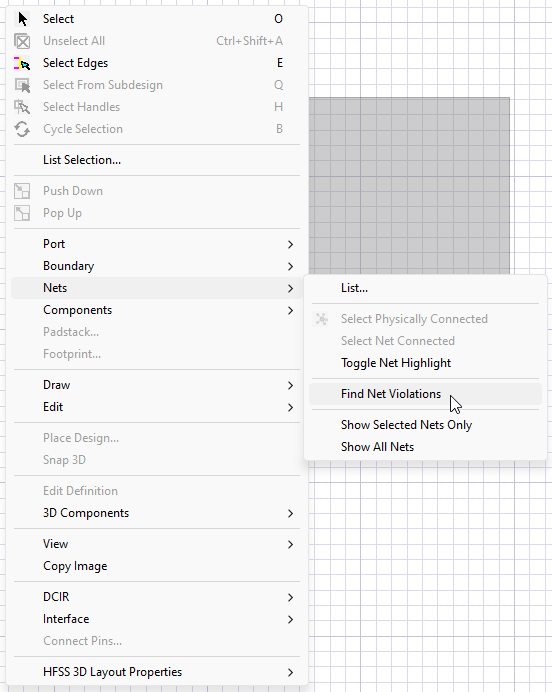
Layout > Nets opens the Nets drop-down menu; the same drop-down menu is also available via the right-click context menu of the Layout Editor. Make choices from the following commands to select nets and view net violations.
In General Mode, the Nets menu includes: List, Select Physically Connected, Select Net Connected, Toggle Net Highlight, Find Net Violations, Show Selected Nets Only, and Show All Nets.
In IC Mode, the Nets menu includes: List, Select Physically Connected, and Find Net Violations.
List
Opens the Design List window. The Design List window lists the name of each net, along with Color and Highlighting controls. Each net has an assigned color. The color is used when the geometry is colored by net or when a net is highlighted. Each net has a check box to activate Highlighting. A highlighted net is displayed opaque when transparency is active.
Select Physically Connected
Selects all primitives, vias and pins physically connected to the currently selected items in the currently active design instance (selections in the Layout Editor cannot cross multiple levels of hierarchy). Vias and pins with plated holes are followed across layers. Connectivity through primitives in subcircuits and footprints is also followed (unless the subcircuit is a blackbox, in which case it owns its own independent stackup).
The starting object cannot be an integrated circuit subdesign.
Find Net Violations
Identifies net violations that occur after a user modifies the physical layout in the Layout Editor. The tool updates dynamically and checks whether any object is touching a net it should not.
- To use the net violations tool, do either of the following:
From the Layout Editor, right-click and select Nets > Find Net Violations.
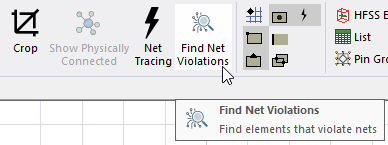
- From the Layout ribbon, click Find Net Violations.
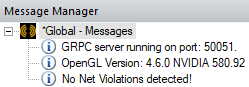
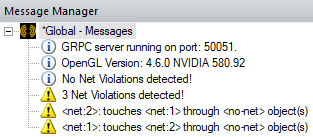
- If no violations are detected, a message appears in the Message Manager window.
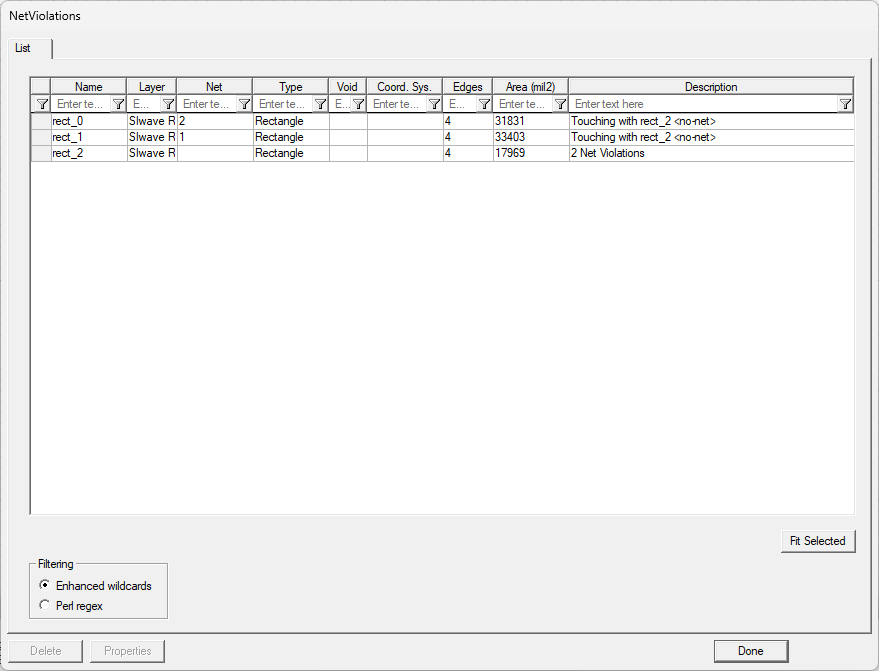
- If one or more violations are detected, the Net Violations window opens. The List tab displays components with net placements and violations, shown in the Description column.
 Note:
Note:The Message Manager window also displays the number of net violations and a list of the specific violations.
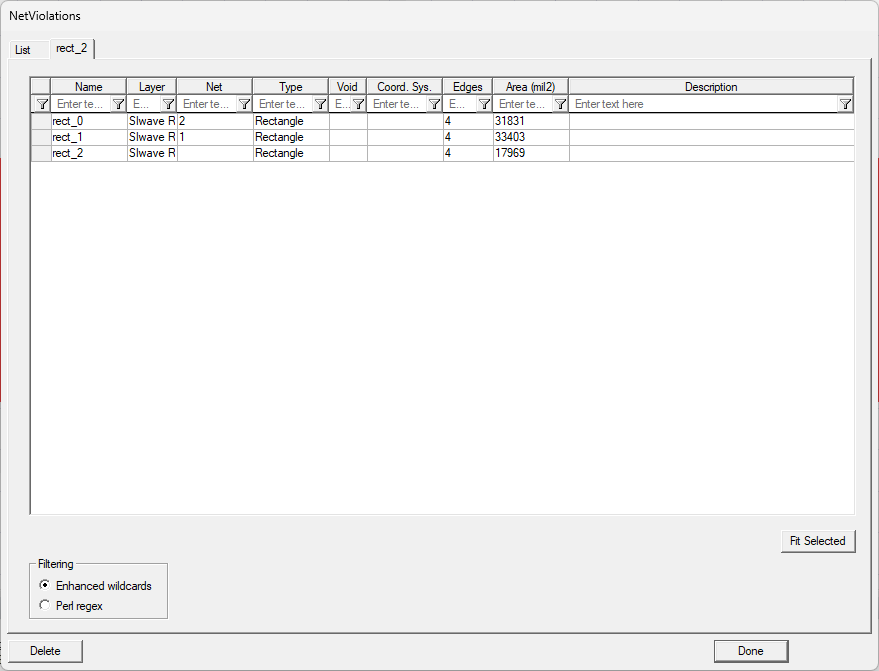
- Selecting a component from the list creates a second tab with the component’s data and highlights the component in the Layout Editor. Click Fit Selected to fit the view over the selected component.
- Selecting the new tab reveals that component's specific connection data.
-
From either tab, components can be selected and then removed by clicking Delete.
-
Click Done to close the Net Violations window.
General Mode Only
Select Net Connected
Selects all items on the same nets as the currently selected items.
Toggle Net Highlight
Toggles the highlighting for all objects in the same nets as the currently selected items.
Show Selected Nets Only
Hides nets that are not selected.
Show All Nets
Makes all nets visible.