
Creating a Component
You can create a component from pins, vias, and primitives. A bounding box shows the border of the component unless another component is a member of the new component. Follow these steps to join components.
- From the Layout Editor, select the components.
- Perform either of these steps to open the Create Component window.
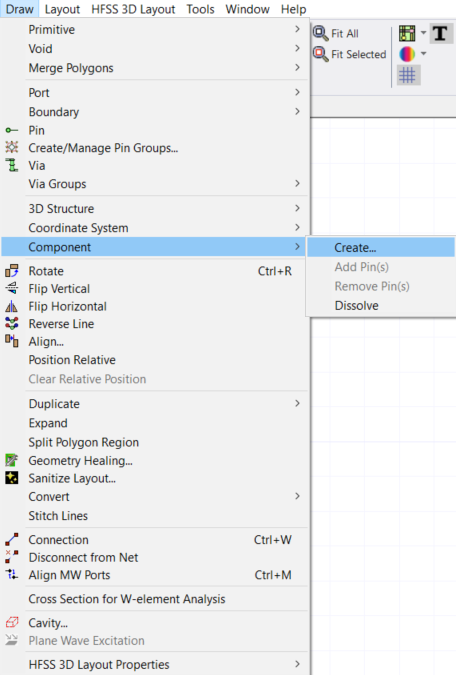
- From the Draw menu, select Component > Create.
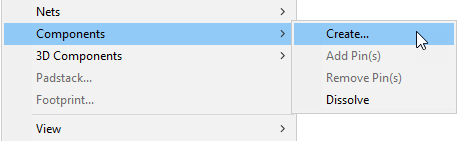
- From the Layout Editor, right-click and select Components > Create .
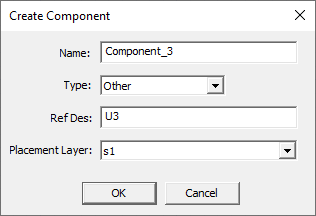
The Create Component window opens.
- From the Draw menu, select Component > Create.
- Once the Create Component window opens, enter the following information into the fields and drop-down menus.
- Name: — enter a name for the new component
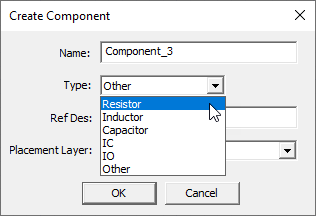
- Type: — choose Resistor, Inductor, Capacitor, IO, IC, or Other.
- Ref Des: — enter an alternative reference destination to identify this component in the active design
- Placement Layer: — select which stackup layer the component should be on
The type you choose determines the component’s model type.
This is optional. A reference destination is automatically supplied.
When creating a new component, overlapping pins are automatically filtered out (i.e., ignored). This prevents downstream issues involving pin groups, terminal creation, meshing, solving et cetera. The following rules determine which pin is retained when overlaps occur:
- If one pin is multilayer and the other is present only on a single layer, the multilayer pin is preferred.
- If both pins are multilayer, the alphabetically lower pin name is preferred.
- If both pins are single‑layer, the larger pin (by size) is preferred.
If overlapping pins are detected during area selection, the ignored pins are listed in the Message Manager window.

-
Click OK. The new component is listed in the dockable Components window.
The process is complete.