Import the subcircuit based VHDL-AMS battery model
Importing the my_batt3.vhd subcircuit-based VHDL-AMS battery model into Twin Builder lets you have a single-level text model to import into your personal library.
- Import my_batt3.vhd
into Twin Builder using Tools > Project Tools > Import
Simulation Models. Select
the SDB tab and select v_out. This sets v_out
to be saved to the database when this model is used in
Twin Builder. Leave all others at their default values. Click OK.
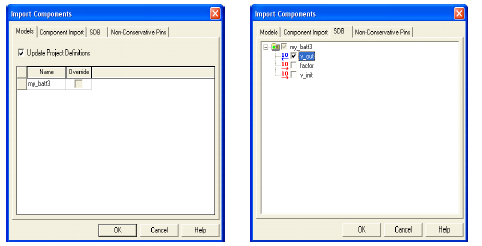
Several definitions for my_batt3 should now show up under the Definitions/Components, Definitions/Symbols, and Definitions/Models folders in the Project Manager pane Project tab.
- Edit the my_batt3
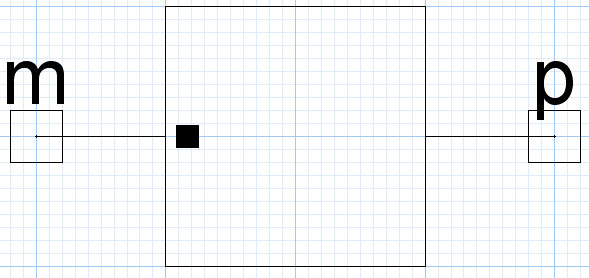
symbol by double-clicking the file in the Definitions/Symbols
folder. The following default symbol should appear:
- Bring in the battery symbol
created in Example #1
(for use in this example); In the Component
Libraries window, expand the Personal Library my_vhdl_library created in Example
#1. Select the my_batt
component, and then right-click and select Edit
Component. In the Symbol
section, click Edit to bring
in its symbol as well.
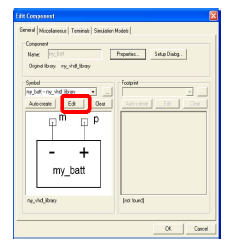
The following dialog box appears.
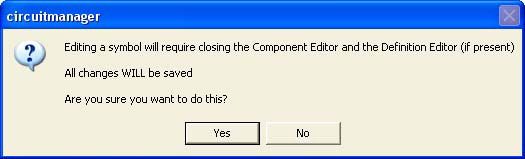
- Click Yes.
- Cascade the editing windows using the Window/Cascade menu item. Close all other editing windows.
- Tile the two symbol windows horizontally to allow easy copy and paste
The following should now appear:
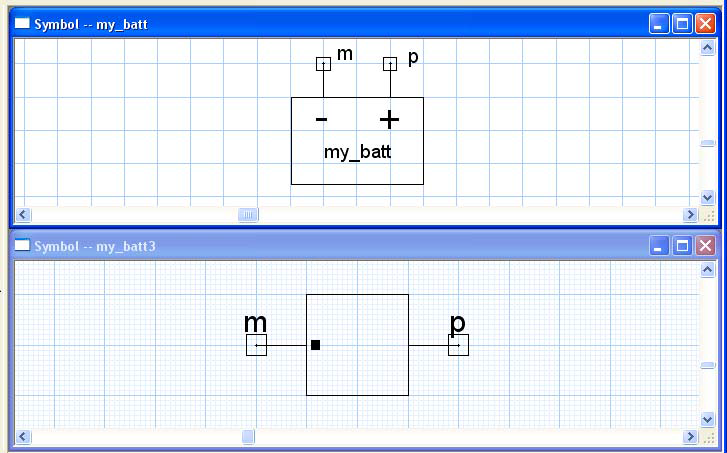
- Select the graphics from the my_batt symbol window, and copy and paste
it into the my_batt3 symbol window.
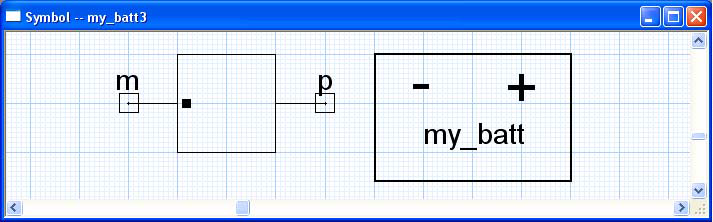
You should now see the following in the my_batt3
symbol edit window.
- Close the other symbol editing window.
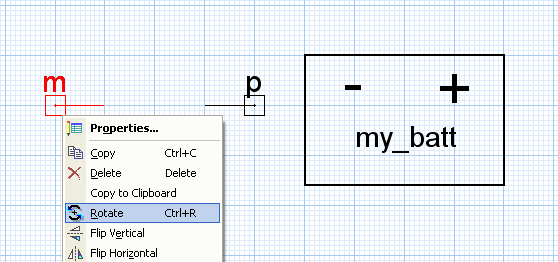
- Delete unwanted graphics and rotate the
two pins by right-clicking and using Rotate
and Flip Vertical as needed.
- Rotate the pin names in similar manner.
- Move the pins and rename the text so
that the symbol now appears as follows:
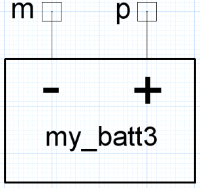
- Update the Project Symbol
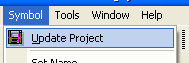
Definition for my_batt3 via Symbol>Update Project, then close
the symbol editing window.