Working with Ribbons
The ribbon is a rectangular area across the top of the application containing features appropriate for the inserted project. It contains various tabs, each one representing a subset of program functionality. The tabs contain icons for related commands that are organized, grouped, and labeled. You can mouse over the icons to see tooltips.
Sizing the application affects the icons displayed for each selected tab, with priority given to the most used features.
Desktop tab
Twin Builder:
This shows the Desktop ribbons when Twin Builder is opened directly from the Start menu or from the Twin Builder shortcut on your desktop. This tab includes functions regarding projects, examples, archives, definitions, project variables, datasets, general options, and help.

Ansys Electronics Desktop:
This shows the Desktop ribbons when a Twin Builder design has been inserted into the Ansys Electronics Desktop.

The following ribbons are displayed when Twin Builder is opened directly from the Start menu or from the Twin Builder shortcut on your desktop.
View tab
This tab contains options for the display, such as docking windows, layouts, page borders, title blocks, sort components, add subcircuit from a selection, grids, edit symbol for this circuit, and elements.

Click Edit Symbol for this Circuit to access the Symbol Editor tab.

Schematic tab
This tab includes options for zoom, adding designs, adding graphics and text, running reports, adding models, links for adding components, characterizing semiconductors and power modules, adding TR, AC, and DC analysis setups, and tools.

Simulation tab
This tab includes options for add transient, AC, DC and solution options, analyze and analyze all, optimetrics, HPC options, scheduler, and job submission.

Results tab
This tab includes options for reports, including open report, output variables, standard report, and import SDB file.

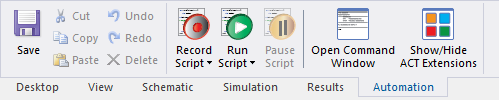
Automation tab
This tab includes controls for recording and running scripts, as well as access to the command window and display settings for ACT extensions.