
Managing Library Files
You can use Manage Files to change the names of the UserLib and PersonalLib libraries and directories, move libraries and directories to another location in the libraries or directories specified for UserLib or PersonalLib, or delete libraries and directories.
Note:
- You cannot move libraries out of the UserLib or PersonalLib hierarchies.
- To move a library or directory to a subfolder, that subfolder must already exist.
Components and other definitions in libraries directly affected by an action which refer to definitions changing library name or location will have those references adjusted. Definitions in libraries indirectly affected—that is, those not having their names or locations modified by an action—with references to definitions in directly affected libraries are updated.
To manage library files:
- Select Tools > Library Tools > Manage Files. The Manage Library
Files dialog box opens on the Components tab. There is a tab for each
library type: Symbols, Components, Materials, Scripts, Models, and Packages.
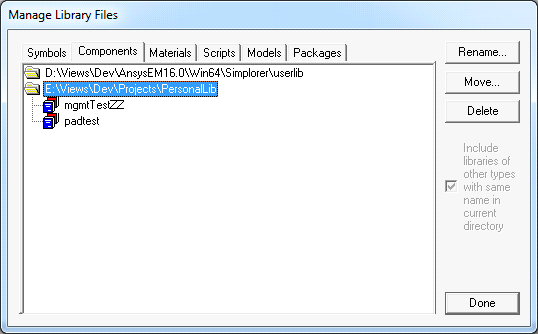
- Click the tab you want.
- Select an individual library or a directory on which you want to perform the action.
- Click Rename, Move, or Delete.
- Select the Include libraries of other types with same name in current directory check box to cause the action to be performed on other types with the same name in the same directory. For example, if you select mydefs on the Components tab, the action is extended to a symbol library in the same directory called mydefs.aslb.
- Click Done when finished managing libraries.