Viewing a Component's Capacitance-Temperature-DC Voltage Bias Plot
Capacitor effectiveness is impacted by operating conditions, particularly the DC bias voltage across their terminals and the ambient temperature at their physical location. SIwave can extract capacitor DC bias values from an associated DC IR simulation and extract capacitor temperatures from an associated Icepak simulation. If such simulation data is not available, SIwave can import and apply a "derating" table, a simple CSV file containing temperatures and DC bias values for capacitors in the design. See SIwave Simulation Options and Computing DC IR Simulations.
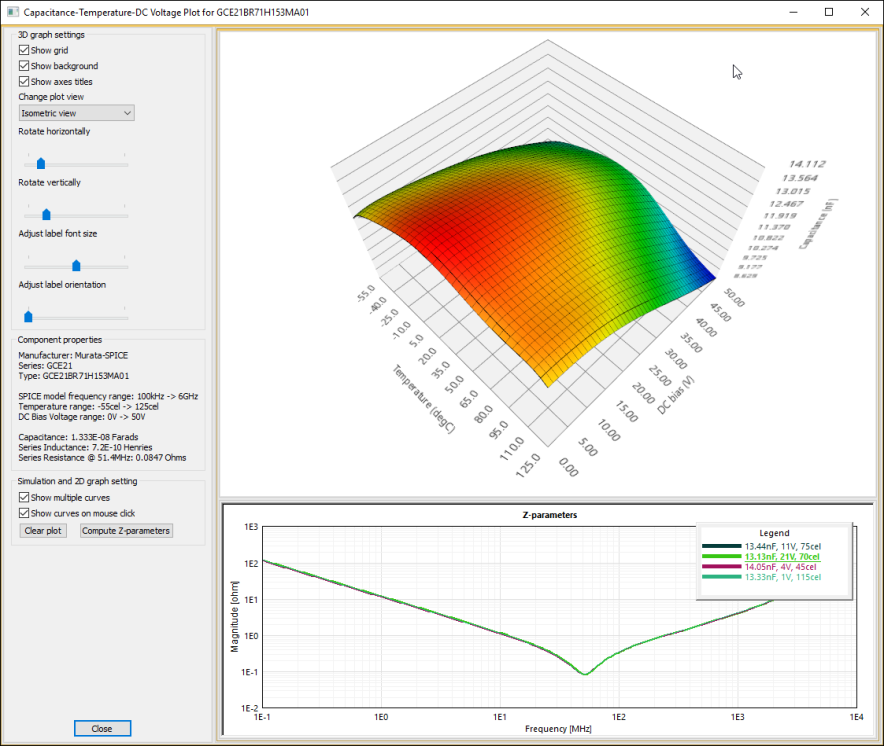
For certain components, you can view a surface plot of the model’s capacitance as a function of DC bias voltage and temperature:
- Navigate to the Components workspace.
- Expand the Components tree to an appropriate Murata-SPICE component.
- Right-click to open a pop-up menu and select Examine Component Properties.
- From the 3D Graph Settings area, use the check boxes and sliders to alter the display. You can change the background, grid, and titles, as well as rotate the graph.
- Click any point on the 3D graph to view the plotted Z-parameters. If you want to disable this function, uncheck the Show curves on mouse click check box.
- From the Simulation and 3D Graph Setting area, you can select whether to show multiple curves on the Z-parameter chart and whether curves are automatically selected on mouse click. You can also clear the plot.
- Click Close to exit.
The Capacitance-Temperature-DC Voltage Plot window appears.
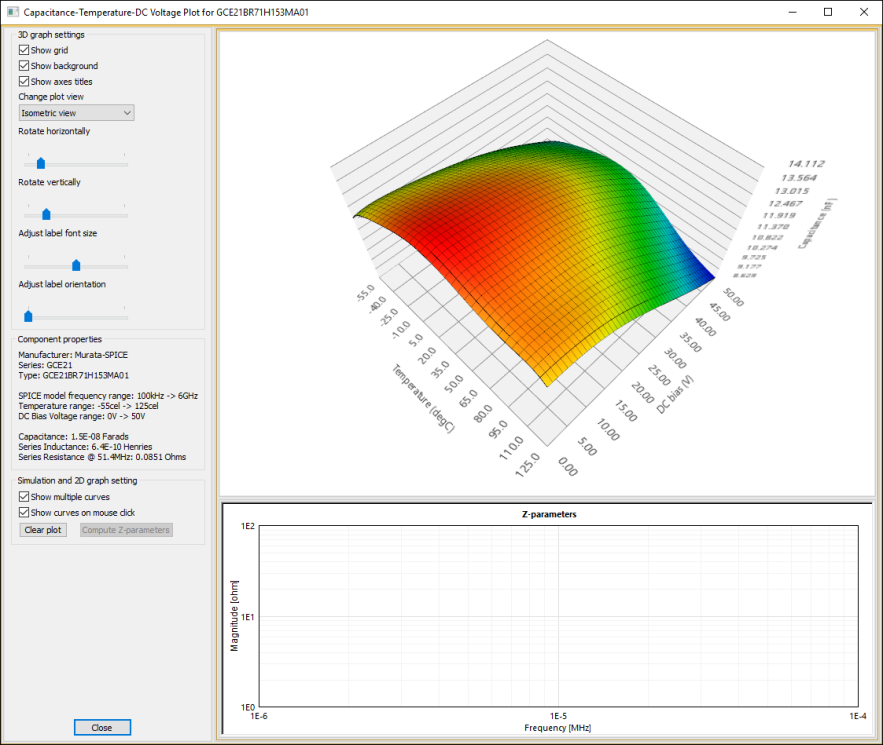
The 3D graph displays Capacitance, Temperature, and DC Voltage Bias. Component properties are displayed to the left.