
Using the Online Help Search Function
When you enter words or strings to search for in the help, the search engine, by default, lists all topics in which any of the words occur (e.g., if you enter "voltage source" without the quotation marks, the results show all topics that contain "voltage" or "source").
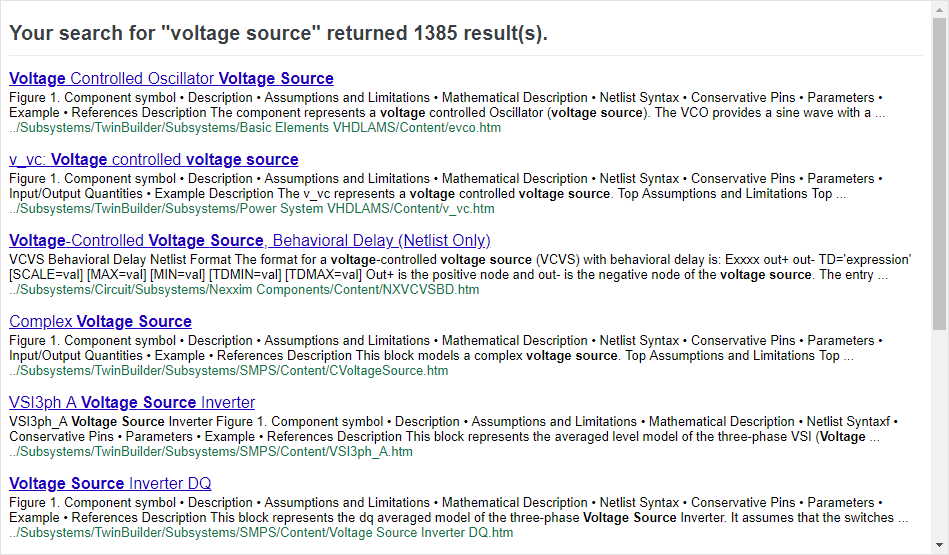
This method probably provides more hits than you want. The Search function in the help provides several methods for making searches more specific.
Performing a Basic Search
- Type the words or string in the Search box.
- The Search box includes a drop-down filter for specifying a product but not including its scripting guide (e.g., SIwave), specifying a product's scripting guide (e.g., SIwave Scripting), or searching across all Electronics products (for example, All Products). When you change the filter, the results dynamically reflect the selected filter.
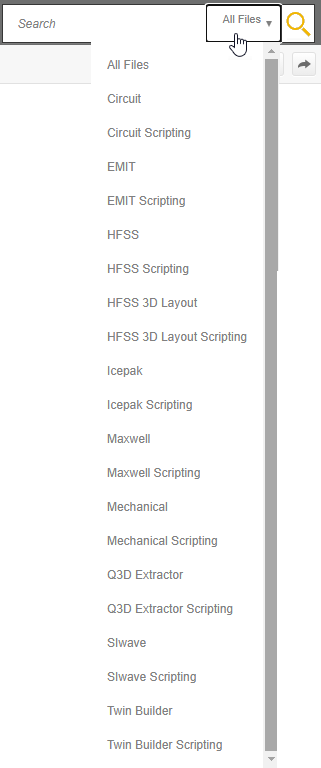
- Click on the topic you want in the list results.
- If you want to view a different topic, press your browser's back button to return to the list results.
- To turn off highlighting on the current page, click the Remove Highlights icon
 .
.
Searching with Quotation Marks
If you enter "voltage source" (with quotation marks), the results show all topics that include the phrase.
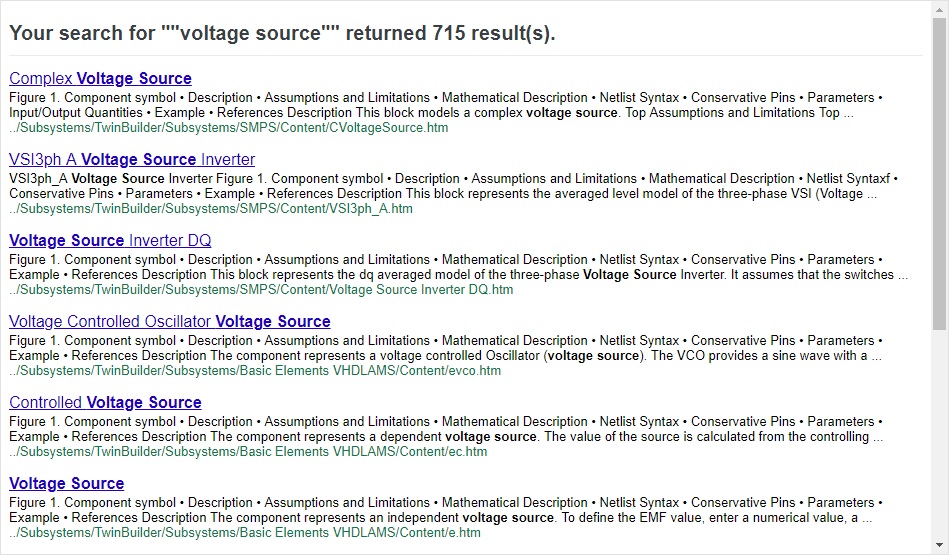
As you can see, this returns far fewer results than the basic search.
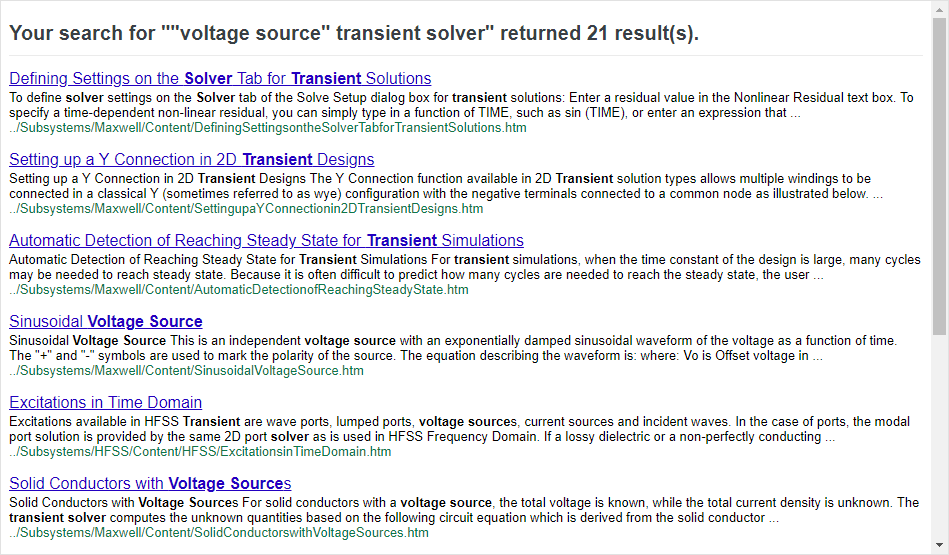
To further limit the results, you can enter additional words, such as: "voltage source" transient solver
- Searches are not case sensitive, so you can type your search in uppercase or lowercase characters.
- You may search for any combination of letters (a-z) and numbers (0-9).
- Punctuation marks (period, colon, semicolon, comma, hyphen) are ignored during a search.
- When searching for a file name with an extension, group the entire string in quotation marks (e.g., "filename.ext").
Using Boolean Operators
These choices affect the number of topics listed.
| Operator(s) | Usage | Example(s) |
|
AND + & |
Lists all topics that contain all of the terms. |
Net AND Selection Net + Selection Net & Selection |
|
OR | |
Lists all topics that contain any of the terms. |
Net OR Selection Net | Selection |
|
NEAR |
Lists all topics that contain the terms near the other terms. |
Net NEAR Selection |
|
NOT ! ^ |
Lists all topics that contain the first term but not the second. |
Net NOT Selection Net ! Selection Net ^ Selection |
Use parentheses to group terms and operators. For example:
- solver AND (Circuit) NOT HFSS NEAR dynamic
- solver AND (HFSS OR Circuit) NOT (Q3D OR 2d) NEAR dynamic
- "dynamic link" ! (HFSS | circuit)
Because the characters +, &, |, !, and ^ are used as operators, you cannot search for them in the help. Doing so will result in an error.