
Exporting DC IR Information
Follow these steps to export DC IR information.
- Do one of the following:
- From the Results tab, select DC IR Drop > [Simulation Name] (e.g., DC IR Sim 1).
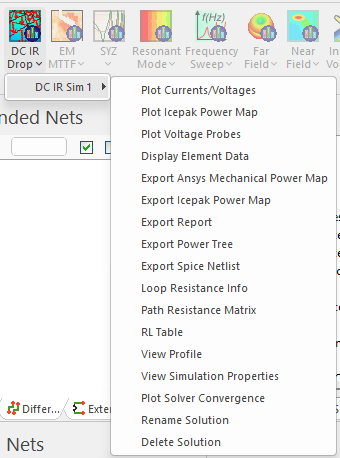
- From the Results window, right-click [Simulation Name] (e.g., DC IR Sim 1).
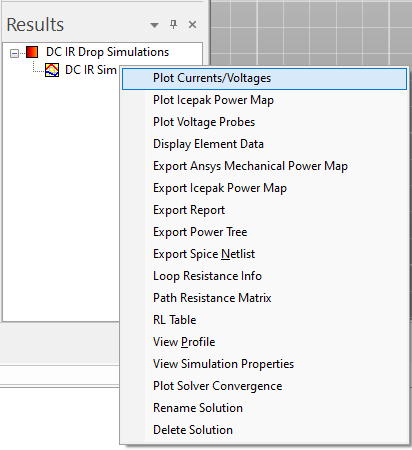
- From the Results tab, select DC IR Drop > [Simulation Name] (e.g., DC IR Sim 1).
- Select an appropriate export option. Export options include (but are not limited to) the following:
- Export Ansys Mechanical Power Map – exports a power map.
- Export Icepak Power Map – copies power dissipation files to a specified folder. These files can be opened using Icepak.
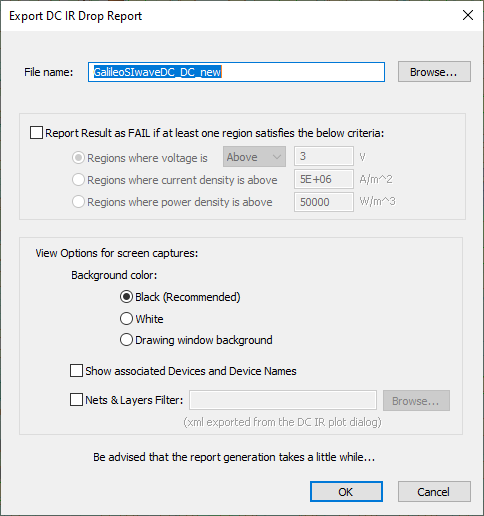
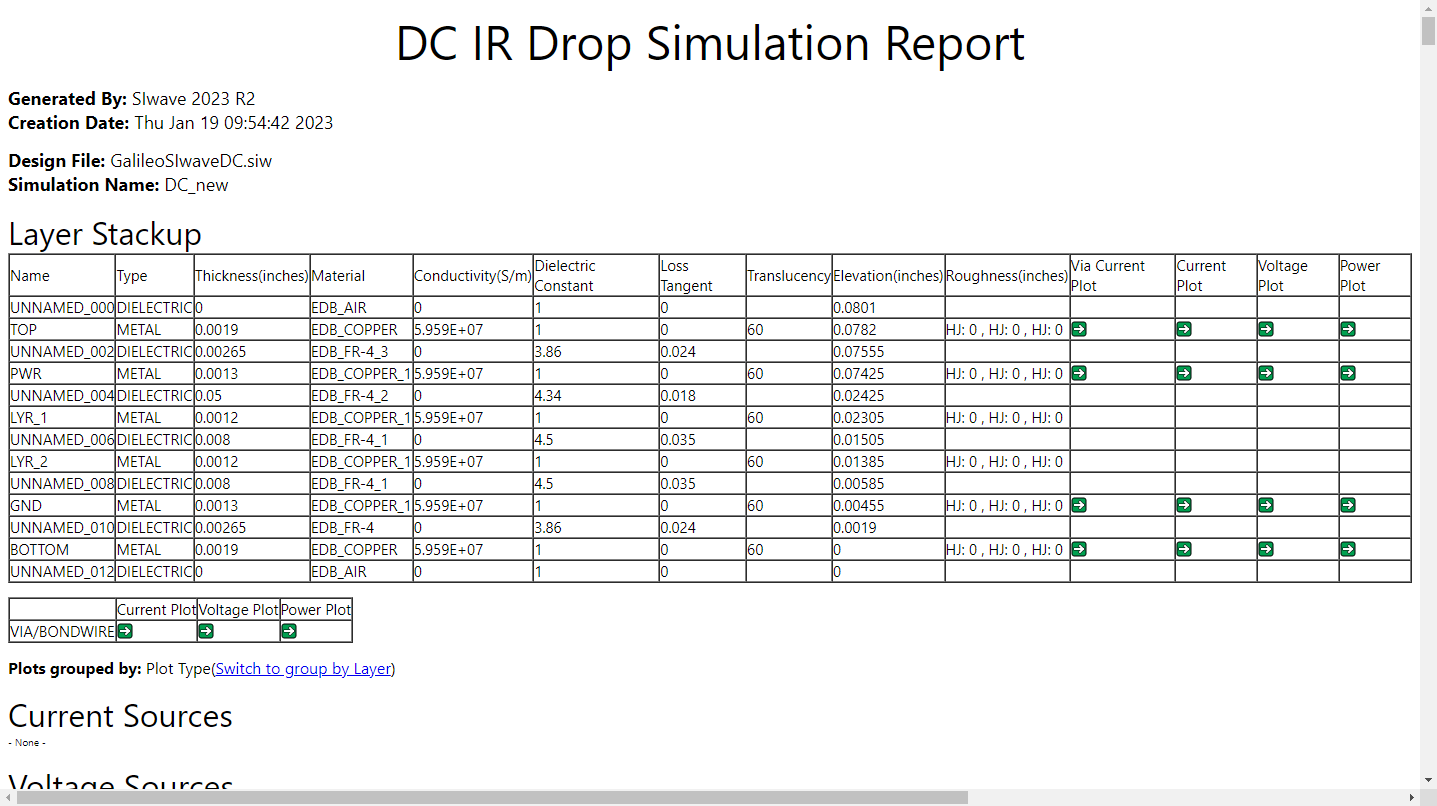
- Export Report – exports a report in *.html format.
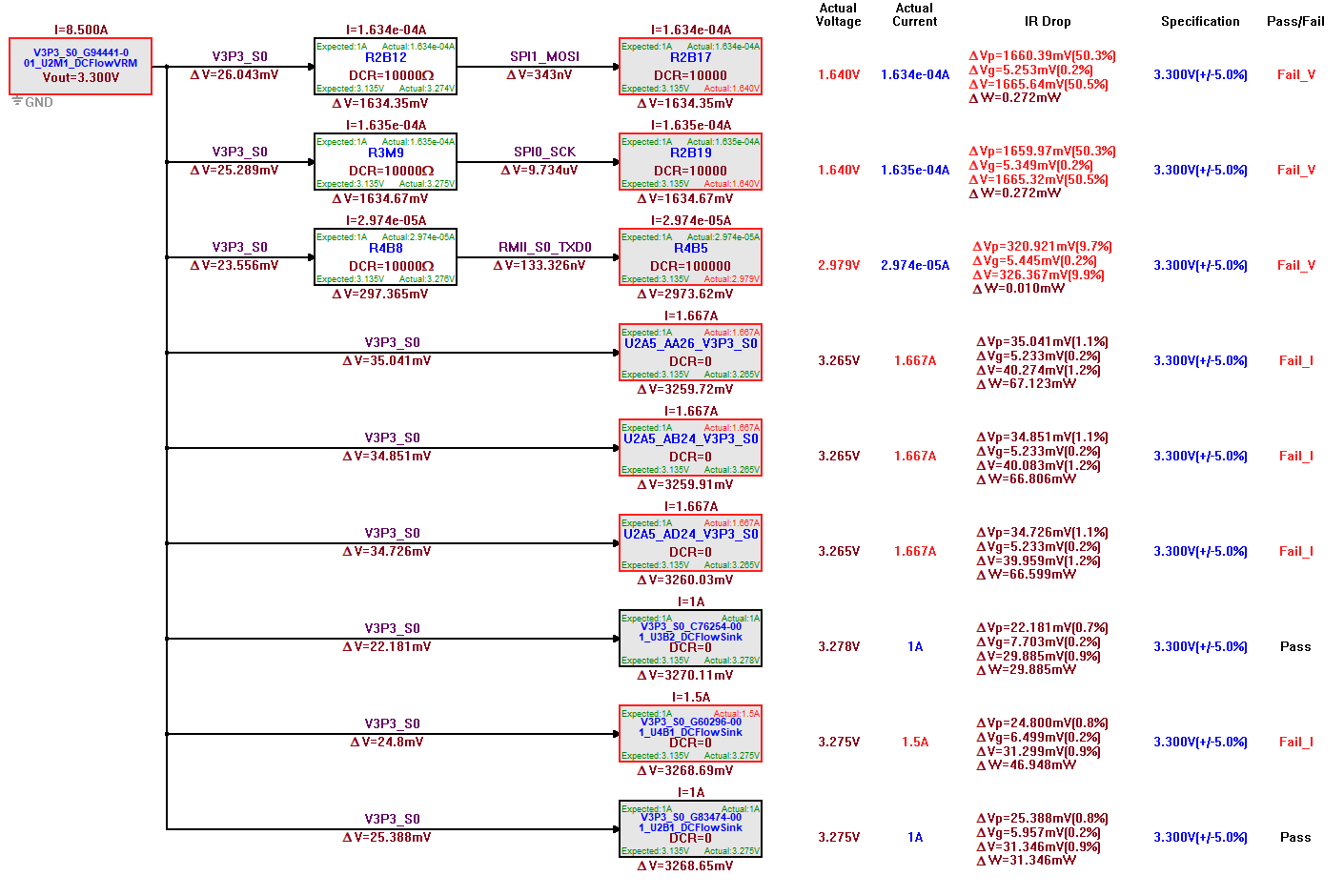
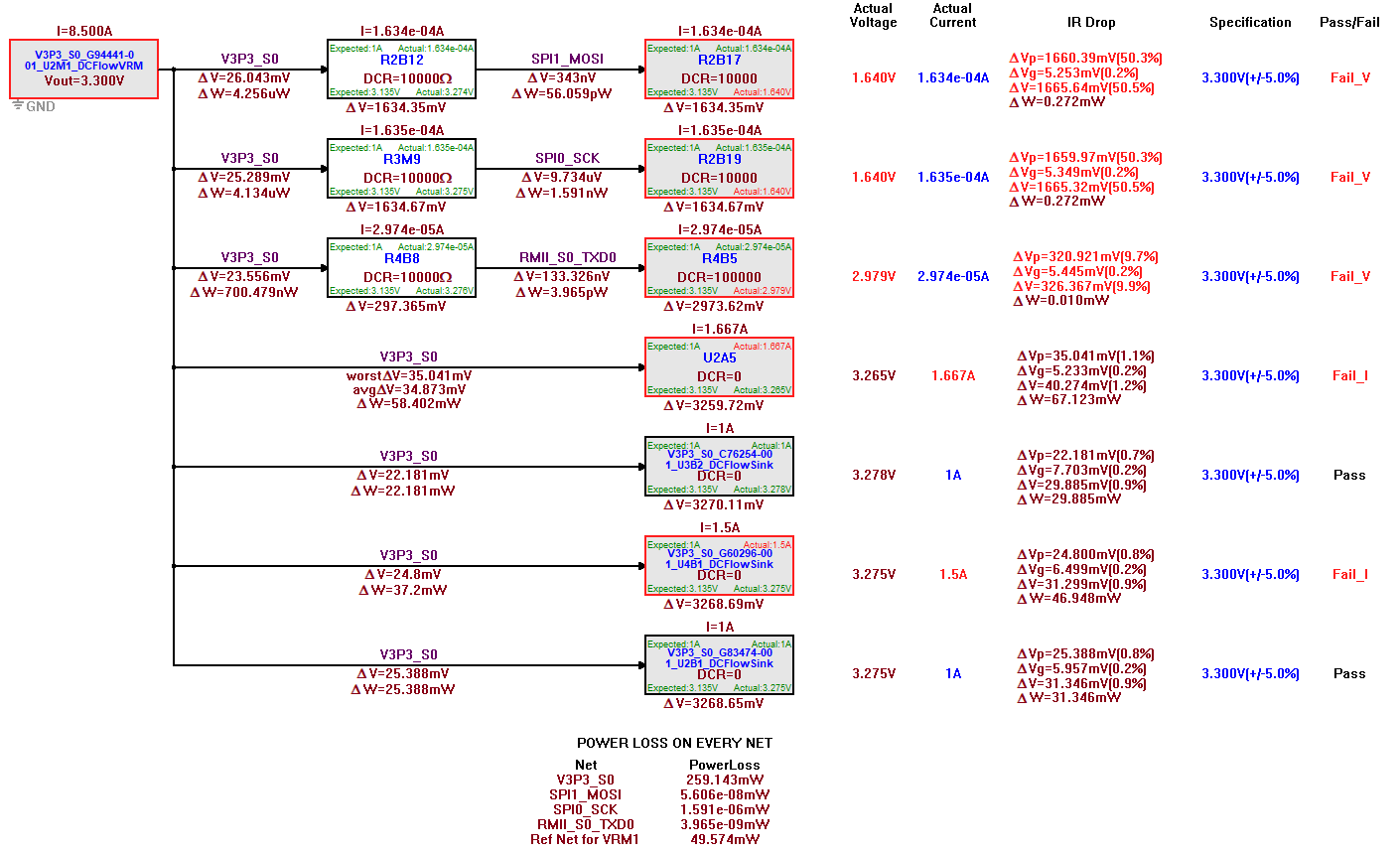
- Export Power Tree – exports a power tree in *.png format (*.bmp on Linux). The power tree shows the current and voltage drop across each branch and component. Actual values are compared with the user's expected values, and determines the Pass/Fail result of each terminating component.
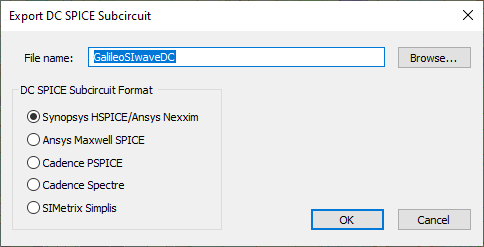
- Export Spice Netlist – exports a SPICE Netlist in *.sp format.
-
A settings window opens with an appropriate options for the selected export type, such as the following examples.
Export Report > Export DC IR Drop Report Window
Export Power Tree > Export DC Power Tree Window
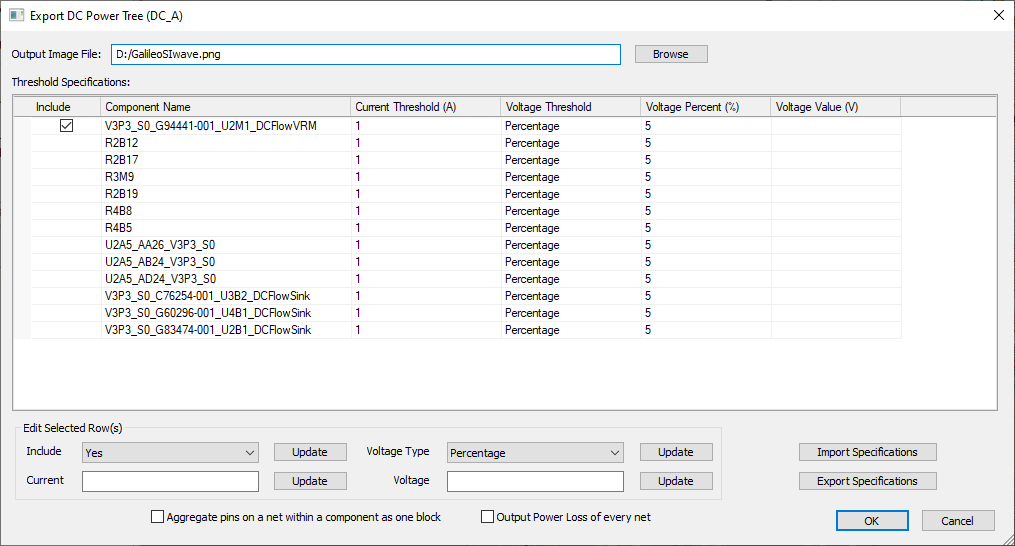
Beneath the Edit Selected Row(s) area, there are two additional options:
-
Aggregate pins on a net within a component as one block — check this box if the source/probe is a distributed current, to combine all of the pins from a single component into one block for general analysis. The result will display the combined pins' average voltage loss as well as the most significant voltage loss experienced by any of the pins.
-
Output Power Loss of every net — check this box to add a list beneath the power tree of every net and its power loss.
Before Checking Either Box
After Checking Both Boxes
Export Spice Netlist > Export DC SPICE Subcircuit Window
-
After finalizing the configuration, click OK to generate the export (e.g., produce and open a report in *.html format).
From the DC IR results menu, you can also view DC IR results and view and change DC IR properties.