
Archiving and Restoring Projects
You can place a project and any other files related to the project that you want to include in an SIwave archive file (*.siwz). An .siwz file is a compressed file type that can be opened in any program that can read .zip files. The Archive command automatically detects an appropriate files for linked projects and includes them in the archive. The project file, simulation results, and all externally referenced files, including component library parts, are included in the archive.
Archiving a Project
Complete the following steps to archive a project.
- Do either of the following to open an explorer window.
- Navigate to File > Archive.

- From the Quick Access Toolbar, select Archive.

- Navigate to File > Archive.
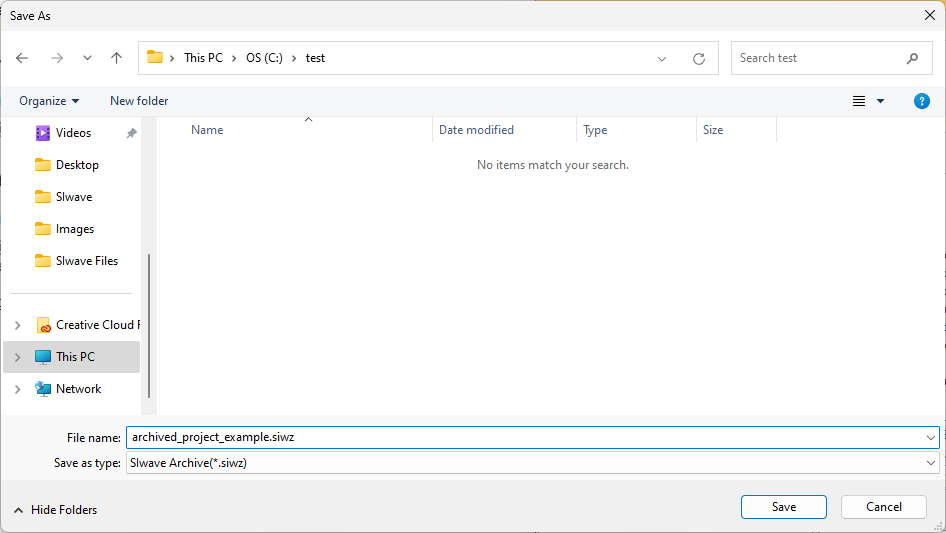
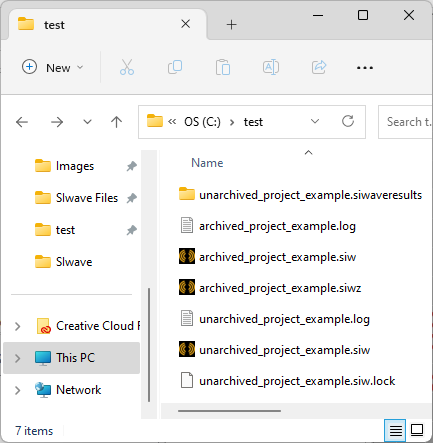
- Navigate to an appropriate directory and enter a File name for the archive (e.g., archived_project_example.siwz). Then click Save.
The procedure is complete.
Restoring an Archived Project
Complete the following steps to restore an archived project.
- Do either of the following to open an explorer window:
- Navigate to File > Restore Archive.
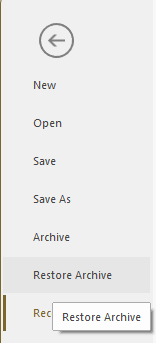
- From the Quick Access Toolbar, select Retore Archive.

- Navigate to File > Restore Archive.
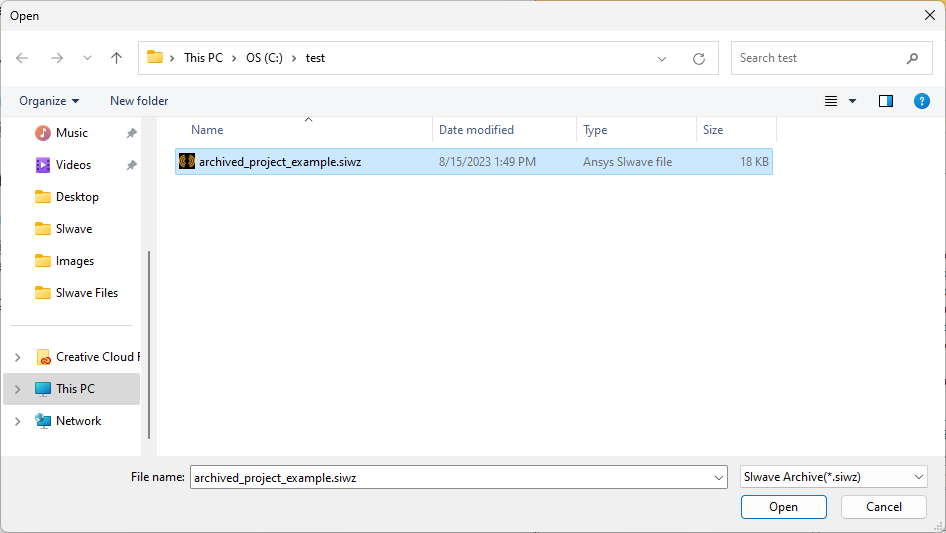
- Navigate to an appropriate file and select it (e.g., archived_project_example.siwz). Then click Open. Users will be immediately prompted to save the unarchived .siw project file (i.e., SIwave file).
- Navigate to an appropriate directory and enter a File name for the archive (e.g., unarchived_project_example.siw). Then click Save to continue extraction.
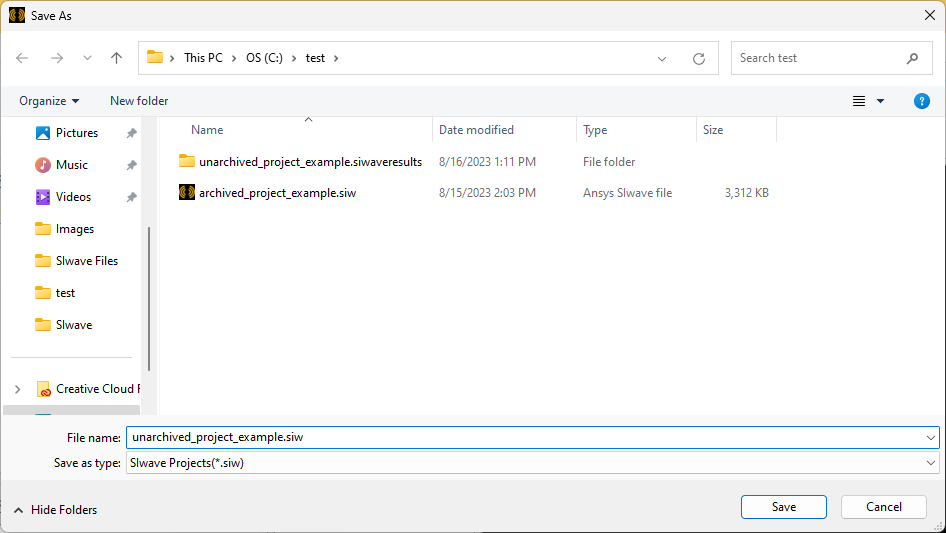
- The contents of the .siwz file are extracted to the location selected in step 3.
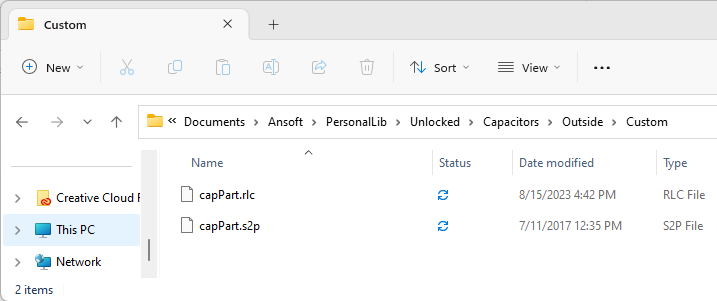
- Components that are not part of the standard component library found in the installation directory are extracted to subfolders in the first writable component library location (i.e., by default, the users' PersonalLib folder located at C:\Users\<USERNAME>\Documents\Ansoft\PersonalLib).
The procedure is complete.