
Toolkits
In the Ansys Electronics Desktop, you can add toolkits, which are custom functions that perform a specific task.
- Geometry creation
- Modeling
- Productivity
- Post processing & reporting
Use IronPython for scripting the user interface and commands. Custom toolkits can be accessed from the
- Create a Toolkits folder in the "<installation_dir>\v252\AnsysEM\userlib" directory.
The default <installation_dir> path is "C:\Program Files\ANSYS Inc" on Windows and /opt/ansys_inc/ on Linux.
Note:You must have administrative privileges to create folders and files within the Program Files branch of the system drive.
- Create a
- Save one or more script files to the
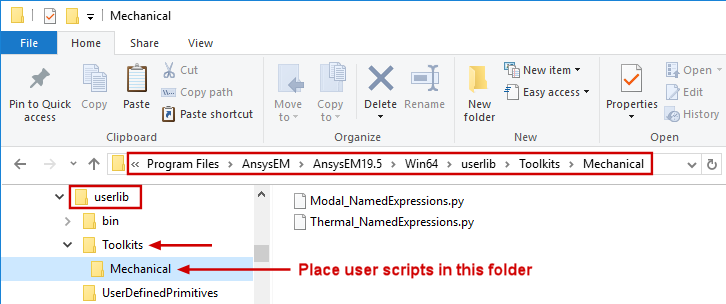 Note:
Note:Do not attempt to record scripts directly to a folder in the Program Files branch of your system drive. Record the script to a working folder, edit it as needed, and then copy the *.py file into the ...\userlib\Toolkits\
- Click
- Go to the
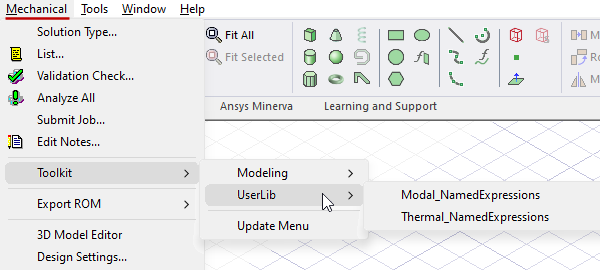 Note:
Note:When you open or insert a Mechanical design, the