Restarting from a Separate Transient Thermal Solution
When you start or continue a transient thermal analysis from the last step of a previously solved transient thermal solution in a separate source design, you are free to modify the parameter values of assigned boundaries or excitations in the target design. Since you are not modifying the boundaries or excitations in the source design, the previously solved results are not invalidated. However, you cannot modify the geometry or add, remove, or reassign any target boundary or excitation for a restart analysis to work. One exception is that you can draw points to select for defining Thermal Monitor points in the target design that didn't exist in the source design.
If you only wish to extend the duration of a transient simulation without changing anything in the design except the Stop Time, there is no need to create a second design. Instead, follow the procedure for Extending the Current Transient Thermal Solution.
Transient-to-Transient Thermal Restart Procedure:
The following procedure assumes that you have already set up and solved a transient thermal analysis of your model using the same boundary and excitation assignments that are needed for the subsequent transient restart analysis.
- Optionally, if you wish to create the target transient thermal design in a different project from the one containing the source transient solution, insert a new project or open the desired existing one.
- In the Project Manager, right-click the source <transient_thermal_design_name> and choose Copy from the shortcut menu.
- In the Project Manager, right-click the <project_name> heading of the project to which you want to add the target transient thermal design and choose Paste.
- Optionally, edit any boundary or excitation in the target transient design for which you want to change the value of a parameter from what was used for the source transient solution.
- Optionally, define any Thermal Monitor points at which you wish to track the temperature results versus time.
- Under Analysis, in the target design branch of the Project Manager, double-click the <analysis_setup_name> to access the Thermal Solve Setup dialog box.
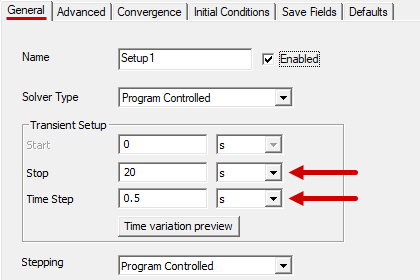
- In the General tab, specify a Stop time that is greater than the Stop time of the source transient solution.
- Optionally, you can adjust the Time Step value for a different calculation increment in the restart analysis.
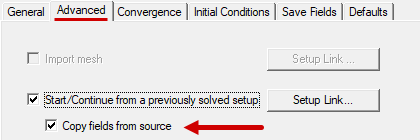
- In the Advanced tab, select Start/Continue from a previously solved setup.
- Follow the instructions on the Setup Link (Transient Thermal Restart) page to complete the required link definition.
- Select Copy fields from source if you want the target design to include all saved fields from the source design.
- The "Import mesh" option and its associated "Setup Link" button are unavailable when you choose the "Start/Continue from a previously solved setup" option because this option implicitly imports the mesh as well as the thermal solution results from the source design.
- If the "Copy fields from source" option is cleared, then only the field result of last time step solved is copied to target design.
- Optionally, customize the options in the Convergence or Save Fields tabs.
- Click OK to accept the solution setup.
- Right-click the transient solution setup and choose Analyze.
Add or open the second project, if desired, in the same Ansys Electronics Desktop session, not in a separate session.
Otherwise, do nothing and continue to step 3.
In most cases, you will likely want to paste the target design into the same project that contains the source design.
For example, you might want to change a static Convection Film Coefficient value to a pwl(<dataset>, Time) function to vary the convective heat transfer over time (representing the effects of a variable speed fan). Similarly, you might want to vary Heat Flux or heat Generation excitations over time.
You cannot add, remove, or change the assignment set of any boundary or excitation. Doing so will cause the transient analysis to start at the default initial conditions, typically ambient temperature, at time = 0. The results of the source transient solution will not be imported if the geometry or boundary/excitation assignments do not remain identical between the two designs. Only changes of boundary/excitation parameter values are permitted.
Do not set the Start Time. That value will automatically become the last time solved in the source solution.
The Setup Link dialog box appears.
Continue from here after completing the link setup:
Depending on whether you selected the Copy fields from source option in step 7d, the first field result will either be the same as the first solved time step of the source solution (option selected) or the last solved time step of the source design (option cleared).
Verifying Restart Data Linking
There are two ways to verify that proper transient restart linking has been performed after the target setups solution has begun:
- Under Analysis in the Project Manager, right-click the target setup and choose Profile from the shortcut menu.
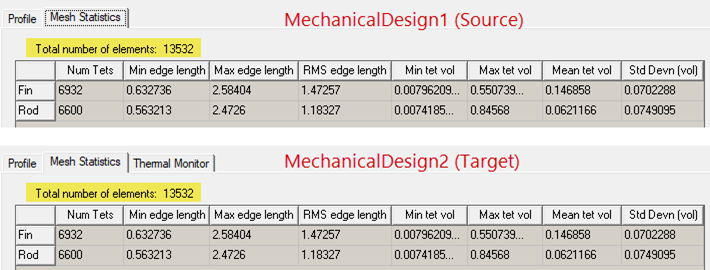
- Under Analysis in the Project Manager, right-click each of the setups in turn (source and target) and choose Mesh Statistics. The mesh statistics should be identical between the two designs, since the mesh is also imported when you perform a transient thermal restart analysis:
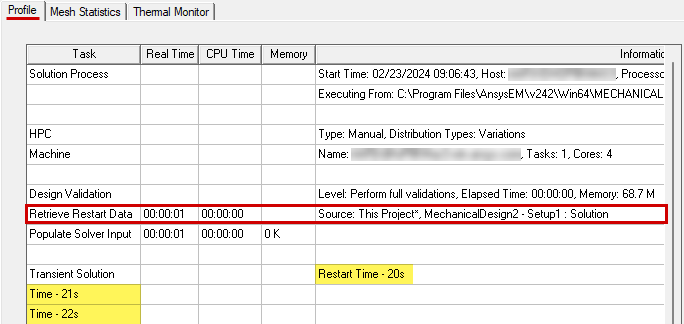
The retrieval of restart data is listed in the profile. Additionally, when restarting from a transient thermal solution, the Restart Time is listed (20s in the following example, which was the last time step solved in the source design). This entry is followed by the individual time steps solved in the target design: