
Creating Rectangular Contour Plots
This is an x-y-z graph of results. Any data that you can currently plot in 3D (as 3D Cartesian or 3D polar) is a candidate for a contour plot.
- On the Results menu (
- In the Context section make selections from the following
field or fields, depending on the design and solution type:
- Solution field with a drop down selection list. This lists the available solutions, whether sweeps or adaptive passes.
- Geometry field with a drop-down selection list. For field and radiated field reports, this applies the quantity to a geometry or radiated field setup.
- Domain field with a drop-down selection list.
- Under the Trace tab Z Component area, specify the information
to plot as contours:
- In the Category list, click the type of information to plot. The selected Category provides the default plot name.
- In the Quantity list, click the value to plot.
- In the Function list, click the mathematical function of the quantity to plot.
- The Value field displays the currently
specified Quantity and Function. You can edit this field directly.
Note:
Color shows valid expression.
- Range Function button -- opens the Set Range Function dialog box. This applies currently specified Quantity and Function.
- On the Trace tab Y (Secondary sweep) lines, specify the
information to plot along the y-axis in one of the following ways:
- Select the sweep variable to use from the drop-down list.
- If sweeps are available, you can select the browse button to display a dialog that lets you select particular values. The quantity will be plotted against the primary sweep variable listed.
- On the Trace tab X (Primary sweep) lines, specify the
information to plot along the x-axis in one of the following ways:
- Select the sweep variable to use from the drop-down list.
- If sweeps are available, you can select the browse button to display a dialog that lets you select particular values. The quantity will be plotted against the primary sweep variable listed.
- Click New Report.
This creates a new report in Project tree, displays the report with the defined trace, and enables Add Trace on the Report dialog box. The default name is based on the Report Category you selected, for example, S Parameter Plot n or Output Variables Plot n). You can edit the plot names in the project tree and the plot header text in the report synchronizes.
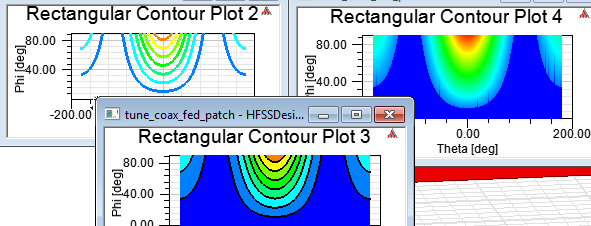
The function of the selected quantity or quantities will be plotted against the values you specified on an x-y-z graph. The plot is listed under Results in the Project Manager. When you select the traces or plots, their properties are displayed in the Properties window. These properties can be edited directly to modify the plot.
The Trace Properties for Cartesian plots include tabs for:
- Attributes tab, including Name, Line Style, Line Width, and Color.
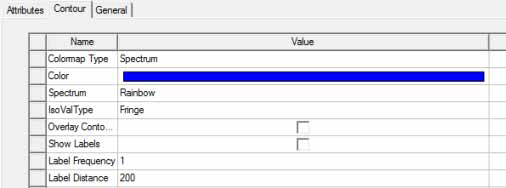
- Contour tab, including Colormap Type, Color, Spectrum, IsoValType, whether to Overlay Contour Lines (on Fringe or Tone plots), Scaling parameters, and Number of contours and spacing.
Colormap Type can be Spectrum, Ramp, or Uniform.
Spectrum can be Rainbow, Temperature, Magenta, or Gray
IsoValType can be Line, Fringe, or Tone.
General tab, including Back Color, Plot Area Color, Enable Y Axis Stripes, Field Width, Prevision, and whether to Use Scientific Notation.
You can also access these properties by double-clicking on the Contour plot and viewing the Contour tab.
- Optionally, add another trace to the plot by following the procedure above, using Add Trace rather than New Report.
The Report dialog box appears.