
Recording a Script
Electronics Desktop can record a script based on UI actions and save this script in Python (*.py) format.
Scripts can be saved to an external file, or to the project.
Important:
When you record a script, every subsequent action you take is recorded. You must manually stop recording.
Recording a Script to File
To record a script to file:
- Click Tools > Record Script to File, or select the Automation tab and click the Record Script icon:
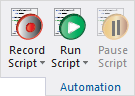
A Save As file browser appears.
- Navigate to the location where you want to save the script.
- In the File Name field, type a name for the script file.
- Click Save.
The Record Script button transforms into a Stop Recording button, and Electronics Desktop begins recording your actions.

- Perform the steps you want to record.
- When you have finished recording the script,
click Stop Recording, or select Tools > Stop Script Recording.
The recorded script is saved to the folder you specified.
Recording a Script to a Project
To record a script to a project:
- Click Tools > Record Script to Project, or select the Automation tab and use the Record Script drop-down menu to select Record Script to Project.
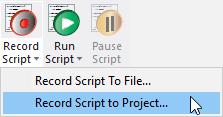
The Save Script to Project dialog box appears:
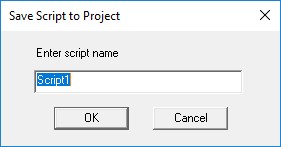
- Enter a name for the script in the text box, then click OK.
- Perform the steps you want to record.
- When you have finished, click Stop Recording, or select Tools > Stop Script Recording.
The recorded script is saved to scriptname.py in the Scripts library and can be accessed from the Project Manager. See: Working with Project Scripts.