
Solving a Single Setup
To run a single setup:
- Select a solution setup in the Project Manager.
- Right-click and select Analyze from the shortcut menu. The graphic shows a single
- Mesh regions intersecting one another
- Sheets assigned a thin conducting plate boundary condition intersecting a mesh region
- Polygonal or inclined geometry intersecting a mesh region
- Network faces blocked by a hollow object (an object with Solve Inside disabled)
- 2D sources placed over sheets assigned thin conducting plate boundary conditions
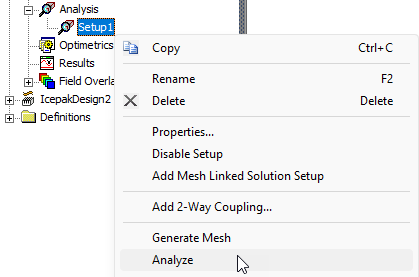
Before solving, the solver checks the design for the following issues:
If a mesh region intersects another, the analysis is aborted with an error message. If any other issues are found, a warning message is displayed in the Message Manager, and the analysis proceeds.
The 3D field solution is computed inside the structure for a solution.
When you right-click a Setup the shortcut menu also includes the Submit Job... command.

For more information on the Submit Job... command see, Distributed Analysis and High Performance Computing (HPC) Integration.
To run more than one analysis at a time, follow the same procedure while a simulation is running. If you have enabled queuing, the next solution setup will be solved when the previous solution is complete.