
Suppressing for Physics (Beta)
In Icepak, you can suppress a selected geometry's or component's design data during a simulation. In design geometry's properties, the Suppress For Physics setting can be set to True or False. Select True to suppress the geometry or False to activate it for inclusion in the simulation. When an object is suppressed for a simulation, design data assigned to it are not factored into the analysis, including the following:
In order to suppress the design data, every piece of geometry linked to the assignment (e.g., boundary condition or a mesh region) must be suppressed. If the assignment's geometry is only partially suppressed, an error message is displayed during design validation.
- Boundary conditions
- Monitors
- Mesh regions
- Mesh operations
- Solar loading
- Initial temperature (transient designs)
You can parameterize an object's suppressed state to make objects active or inactive during parametric trials. To do so, click in the Value field and enter and define a variable (e.g., $sup).
Perform the following steps to suppress an object's design data for a simulation.
- Do one of the following:
- Select geometry in the 3D Modeler window.
- Select geometry object in the History tree.
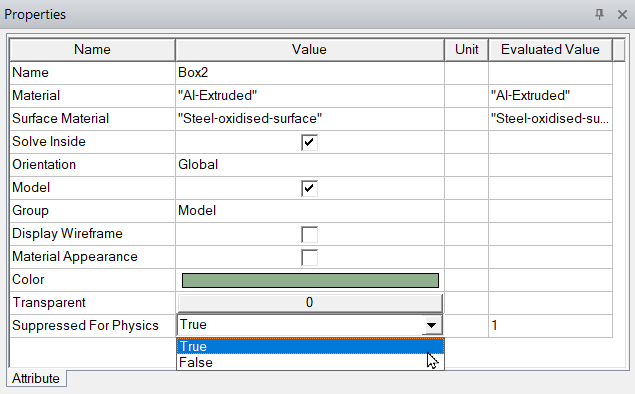
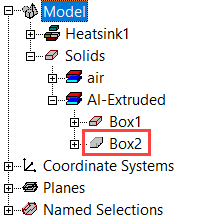
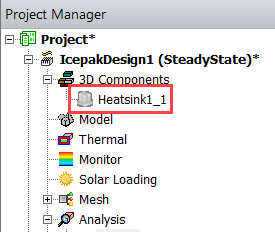
- In the Properties window, select True from the drop-down list next to Suppressed For Physics. Individual geometries that are suppressed appear inactive (grey) in the History tree. Suppressed components appear inactive under Components in the Project Manager.
Considerations for Suppressing Objects
The following should be considered when suppressing geometry or components.
- Suppressed objects and assigned design data are excluded from validation checks.
- Suppressing an object invalidates previously generated mesh, solution results, and post-processing objects.
- Component instances can be suppressed. Individual parts of inserted components must be suppressed by editing the component definition in its own design and then saved.
- Advanced mesh settings (e.g., maximum element sizes) are recomputed if a mesh region assigned to multiple objects has one or more objects suppressed.
- Automatic mesh settings are not recomputed if a mesh region assigned to multiple objects has one or more objects suppressed.
- For solution setups using mesh links or the Continue/Start from a previously solved setup option, if you suppress an object in the target design, the link is broken as the two designs are no longer geometrically equivalent.
- If a part is suppressed in the source design after its solve setup is linked to a target design, the source design’s solution is invalidated.
- You can then solve the source design without error.
- When attempting to solve the target design, an error message is displayed stating that the source and target designs are not geometrically equivalent.
- If you suppress an object in target design, the solution is invalidated. Attempting to solve it again displays an error message stating the source and target designs are not geometrically equivalent.
- Design data for suppressed objects are ignored for designs with one- and two-way coupling.
- Data exported to Ansys Sherlock does not include data related to suppressed objects.