
Enabling GPU (Beta)
The GPU feature appears in the user interface by default as an open beta feature. To use the GPU feature, you must enable the beta option. For information on enabling beta options, see General Options: Desktop Configuration.
Ansys Electronics Desktop supports GPU acceleration for
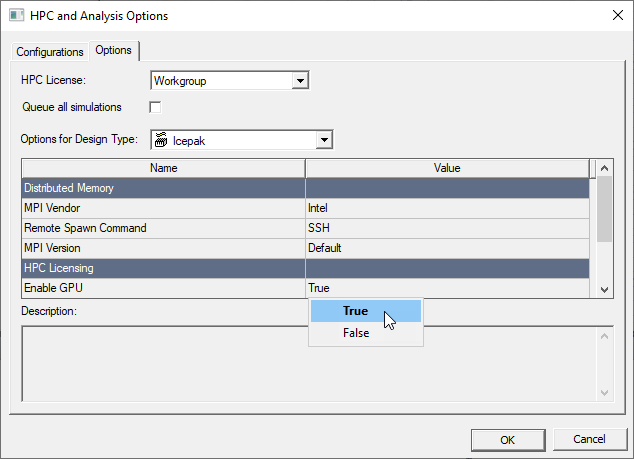
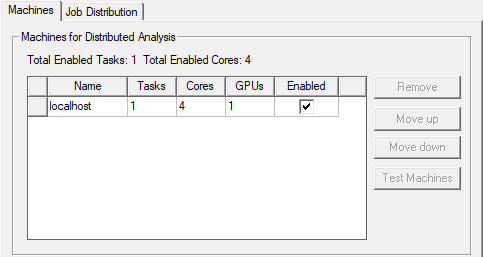
To enable use of GPU, you can set Enable GPU to True and specify the number of GPUs in the Analysis Configuration window.
nvidia-smi.exe -q
.To change compute mode, run the following command:
nvidia-smi -i 0 -c 0
-i= device id. Device id is an integer value. It correlates with number of GPUs present in the machine.-c= compute mode. Compute mode can be 0 or 1. 0 = default or 1 = exclusive mode.
GPU Limitations for Icepak Designs
Certain features in Icepak do not support using a GPU. If the design has any features not supported by the GPU solver, Icepak automatically switches to the CPU solver. A warning message that includes the unsupported feature(s) is reported in the Messages window. Icepak designs containing the following objects or settings are automatically run using the CPU:
- PCB component
- PCB networks
- Internal fans with Swirl specified
- Network boundary condition
- No Reverse Flow option
- Shell conduction
- Joule heating
- Spalart Allmaras turbulence model
- Ray tracing radiation
- Solar loading
- UDFs
Troubleshooting GPU Acceleration for Icepak
In the Message Manager, if you receive a error stating that Electronics Desktop could not find the nvml.dll binary, resulting in CPU usage for the simulation, download and install the latest version of CUDA to obtain the drivers required for GPU acceleration.
To check GPU usage, open the Windows Command Prompt and enter nvidia-smi to display all processes currently running with the GPU.
To check GPU multi-processors and cores on your machine, open the command prompt and enter the following command to change the working directory:
cd C:\Program Files\NVIDIA GPU Computing Toolkit\CUDA\versionnumber\extras\demo_suite
Open the command prompt in this folder and run deviceQuery.exe.