
Symbol Property Display Setup
The Symbol > Property Display Setup command opens a Properties window in which you can add or modify how the names, values, and locations of properties associated with the component or object (such as a title block) are represented by the current symbol.
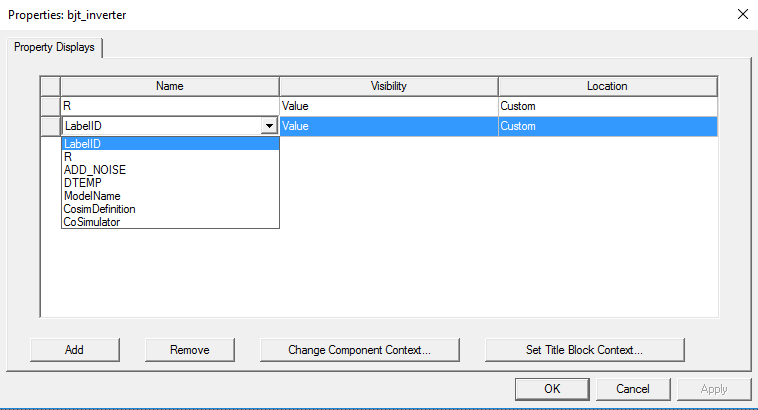
The Symbol Property Displays Window
This window lists symbol display properties and controls their presence, visibility, and position. Every entry in this window corresponds to a property on a component associated with the symbol in question. Whoever creates or edits a component determines which property to add. Some properties such as [LabelID] can appear in multiple components. The component is set automatically if you are editing an existing symbol. To change the reference component, click Change Component Context.
Columns in the grid are:
- Name – Click in this cell to type a property display name, or to select an existing property display from a list. The component selected via Change Component Context determines which property displays are listed for selection.
- Visibility – Click in this cell to set the visibility (None, Name, Value, or Both) of a property display.
- Location – Click in this cell to set the location (Left, Top, Right, Bottom, Center) of the property display relative to the symbol center.
The actions available in this window are:
- Click Add to add a new property display entry to the list.
- Click Remove to remove the selected property display.
- Click Change Component Context to open the Select Definition window, to select the component definition on which property displays are based. The properties of the selected component are then available in the Name cell properties list.
- Click Set Title Block Context to make the list of default page properties, and others as specified, available for display. Default properties include: ProjectPath, Project, Design, Title, Author and Date. This context is selected by default if the symbol has three or more propdisplays for default page properties.